Database Management and Platform Security · Topic 3 of 5
Importing Data
ServiceNow import sets for the CSA exam: data sources, staging tables, transform maps, field maps, coalesce, choice actions and what imports skip.
- 4 min
- Includes a diagram
- Order: data source, import set table, transform map, target table.
- Raw data always lands in the staging table, never directly in the target.
- A field map links a source column to a target field.
What it is
Importing data brings records from outside the instance, such as a spreadsheet of users or a feed from another system, into ServiceNow tables. The platform never writes the raw file straight into the target table. It loads rows into a temporary import set table first, then a transform map moves them into the target table.
This two-step design lets you check what arrived before it touches real data, and rerun a transform without loading the file again.
How it works
Data source and loading
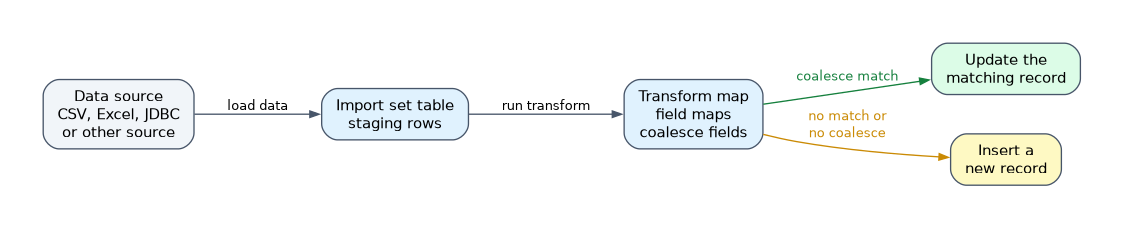 A data source describes where the data comes from. Common types are a file (CSV, Excel or XML), a JDBC connection to a database, and LDAP. Data sources and loading are found under System Import Sets.
For a one-time file, use Load Data, choose the file and the import set table. The rows land in the import set table as they are, with column names taken from the file. The platform records each load as an import set, so you can trace which rows arrived together.
For repeated imports, a scheduled import runs the data source and transform on a timer.
Transform maps and field maps
A transform map connects an import set table to a target table, such as Users. It holds the field maps, which say which source column feeds which target field.
The Auto Map Matching Fields option creates field maps for columns whose names match the target field names. Anything else you map by hand.
A field map can also run a script, or use a choice action for reference and choice fields when the incoming value does not exist yet:
| Choice action | Result |
|---|---|
| Create | Adds the missing value or record |
| Ignore | Leaves the field empty and carries on with the row |
| Reject | Skips the whole row |
Coalesce
Coalesce stops duplicates. You mark one or more field maps as coalesce fields. For each row, the platform looks for an existing target record with the same value there. If one matches, it updates that record. If none match, it inserts a new one.
With several coalesce fields, a match needs all of them to match. With no coalesce field at all, every row inserts a new record, so rerunning the same file creates duplicates.
A good coalesce field is unique and stable, such as an employee ID or email address.
Transform scripts and what imports skip
Transform scripts run at set points, for example before or after each row. They fix data on the way in, such as formatting a phone number. The transform map also decides whether business rules run for the records it writes.
Imports do not use the form, so UI policies and client scripts do not apply to imported records. Server-side controls such as data policies can still apply when the data policy is set to cover imports.
After a run, the transform history and the import set rows show what happened to each row, such as inserted, updated or an error. Check them before trusting a large import.
How the exam asks about this
- "A user spreadsheet is loaded again every week and must not create duplicates." Coalesce on a unique field such as employee ID.
- "Source column names differ from the field names in the target table." Create field maps by hand, or fix the names and Auto Map.
- "Data arrives in a temporary table first." That is the import set table.
What to remember for the exam
- Order: data source, import set table, transform map, target table.
- Raw data always lands in the staging table, never directly in the target.
- A field map links a source column to a target field.
- Coalesce updates a matching record instead of inserting; with several coalesce fields all must match.
- No coalesce field means every row inserts.
- UI policies do not run on imports.
Coalesce on a field that is not unique can overwrite the wrong record. Test with a small file first.
Common mistakes
Skipping coalesce on a repeated import. The result is a duplicate record for every row on every run. Decide the coalesce field before the first load.
Expecting a UI policy to validate imported data. UI policies work on forms in the browser. Use a data policy or a transform script to enforce rules on imports.
Treating the import set table as the final data. The staging table is temporary working space. Reports and lists should use the target table.
Check yourself
What are the two tables involved in an import?
The import set table holds the loaded rows, and the transform map moves them into the target table.
What happens to rows when no coalesce field is set?
Every row inserts a new record in the target table.
Why does a UI policy not validate imported records?
Imports do not use the form, and UI policies run only on the client in the browser.
Topic 3 of 5 in Database Management and Platform Security
Test yourself on Database Management and Platform Security
The full ServiceNow CSA question bank has 600 questions, with timed practice exams and an explanation for every answer.
This study guide is independent and is not affiliated with, endorsed by, or sponsored by ServiceNow. Vendor names, certification names and exam codes are trademarks of their respective owners and are used for identification only.