Data Migration and Integration · Topic 3 of 4
System Update Sets
ServiceNow update sets: capturing customizations, in progress and complete states, retrieving, previewing, collisions, committing and backing out changes.
- 4 min
- Includes a diagram
- Update sets capture configuration changes, not data.
- Only the current update set records your changes; avoid the Default.
- Only Complete update sets can be retrieved.
What it is
An update set is a package of configuration changes. It records what you customize on one instance so you can move the same changes to another, for example from development to test to production.
Update sets move configuration, not data. A form change travels; the incident records on that form do not.
How it works
The current update set
Every change you make is saved in the current update set, which you choose from the update set picker in the platform header. If you have not chosen one, changes go into the Default update set.
Do not use the Default update set for work you plan to move. Create a named update set for each piece of work and make it current first.
States
| State | Meaning |
|---|---|
| In progress | Still capturing changes |
| Complete | Finished and ready to be moved |
| Ignore | Excluded and not meant to be moved |
Only a Complete update set can be retrieved by another instance. Mark it complete when the work is done.
Moving an update set
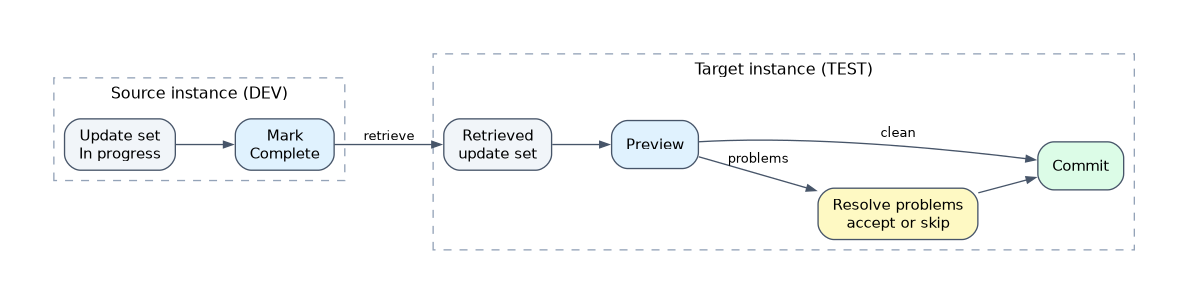 You can move an update set in two ways: retrieve it from the remote instance, or export it as XML and load it on the target. The retrieval option needs the source instance defined as an update source.
Once retrieved, the update set appears under System Update Sets > Retrieved Update Sets. It has not changed anything yet.
Preview, problems and commit
| Step | What happens |
|---|---|
| Preview | The target checks the incoming records against its own and reports problems |
| Resolve | You review each problem and decide what to do |
| Commit | The changes are applied to the target instance |
Preview first, always. Committing is what applies the changes, so problems must be resolved before it.
Collisions
A collision means the target instance already holds a newer version of the same record. Applying the update would overwrite later work.
For each problem you choose one action:
| Choice | Result |
|---|---|
| Accept remote update | The whole incoming record is applied, replacing the target's version |
| Skip remote update | The incoming record is ignored and the target's version stays |
Accept remote update applies the whole incoming record, not just the field you changed. Check what else is in that record before accepting.
Backing out
After a commit, Back Out reverses the update set. It restores the records that were changed to their earlier versions and removes the records the update set created.
Back Out does not restore data. It undoes configuration only, so deleted business data is not recovered.
Merging and good practice
Several small update sets can be merged into one for easier moving. Keep each update set focused on one feature so it can be tested, moved and backed out on its own.
How the exam asks about this
- "A developer made changes but the update set is not available to the test instance." It is not set to Complete.
- "Preview shows the target has a newer version of a form." That is a collision.
- "A committed update set broke a form. How is it undone?" Use Back Out.
What to remember for the exam
- Update sets capture configuration changes, not data.
- Only the current update set records your changes; avoid the Default.
- Only Complete update sets can be retrieved.
- Always preview before committing.
- A collision means the target holds a newer version.
- Accept remote update applies the whole incoming record.
- Back Out restores changed records and removes new ones; it does not restore data.
Do not commit an update set with unresolved preview problems just to get it through. Skipping or accepting without checking can overwrite newer work on the target.
Common mistakes
Building work in the Default update set. The changes are mixed with everything else and are hard to move cleanly.
Expecting data to move. Update sets do not carry records such as incidents or users; use a data load tool for those.
Committing without a preview. Problems and collisions appear only in preview, so skipping it hides them.
Check yourself
Which update set state allows another instance to retrieve it?
Complete.
What does a collision during preview tell you?
The target instance already has a newer version of that record.
What does Back Out do after a commit?
It restores changed records and removes the ones the update set created; it does not restore data.
Topic 3 of 4 in Data Migration and Integration
Test yourself on Data Migration and Integration
The full ServiceNow CSA question bank has 600 questions, with timed practice exams and an explanation for every answer.
This study guide is independent and is not affiliated with, endorsed by, or sponsored by ServiceNow. Vendor names, certification names and exam codes are trademarks of their respective owners and are used for identification only.