Virtualization and Cloud Computing · Topic 1 of 4
Virtual Machines and Hypervisors
Understand virtual machines, hypervisor types, host and guest roles, snapshots, virtual networking and the hardware resources needed to run virtualization.
- 5 min
- Includes a diagram
- A VM runs on a host under a hypervisor; the VM is the guest.
- Type 1 runs directly on hardware; type 2 runs on top of an operating system.
- Guests share the host's processor, memory, storage and network.
What it is
Virtualization lets one physical computer run several separate virtual computers. Each virtual computer, called a virtual machine (VM), has its own operating system and apps, and believes it has its own hardware.
The software that creates and manages virtual machines is called a hypervisor. The physical computer is the host, and each virtual machine is a guest.
How it works
The hypervisor divides the host's resources among the guests and keeps them apart. A guest sees virtual hardware: a virtual processor, virtual memory, a virtual disk and a virtual network adapter.
Two hypervisor types
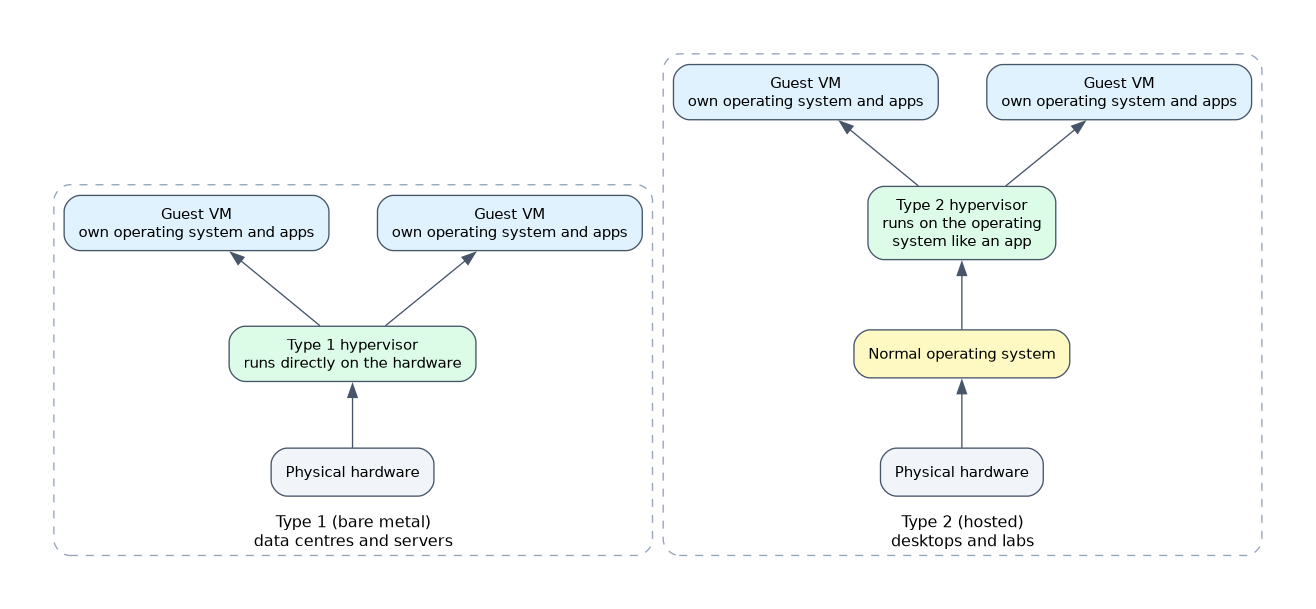
| Type | Also called | Runs on | Typical use |
|---|---|---|---|
| Type 1 | Bare metal | Directly on the hardware | Data centres and servers; efficient and secure |
| Type 2 | Hosted | On top of a normal operating system | Desktops and labs; easy to install like any app |
A type 1 hypervisor has no general purpose operating system under it, which means less overhead. A type 2 hypervisor is simpler for a technician or student who wants a few virtual machines on a laptop.
Resources a VM needs
Every guest takes a share of the host. The host must have enough of each resource for all guests that run at once.
| Resource | What to consider |
|---|---|
| Processor | The central processing unit (CPU) must support virtualization features, and you assign cores to each VM |
| Memory | Random access memory (RAM) is split among guests, and the host also needs some for itself |
| Storage | Each VM has a virtual disk file on the host, so total disk space and speed matter |
| Network | Each VM has a virtual network adapter attached to a virtual switch |
If the combined demand of guests is greater than the host can supply, all guests slow down. A solid state drive (SSD) and plenty of memory help most.
Virtual networking
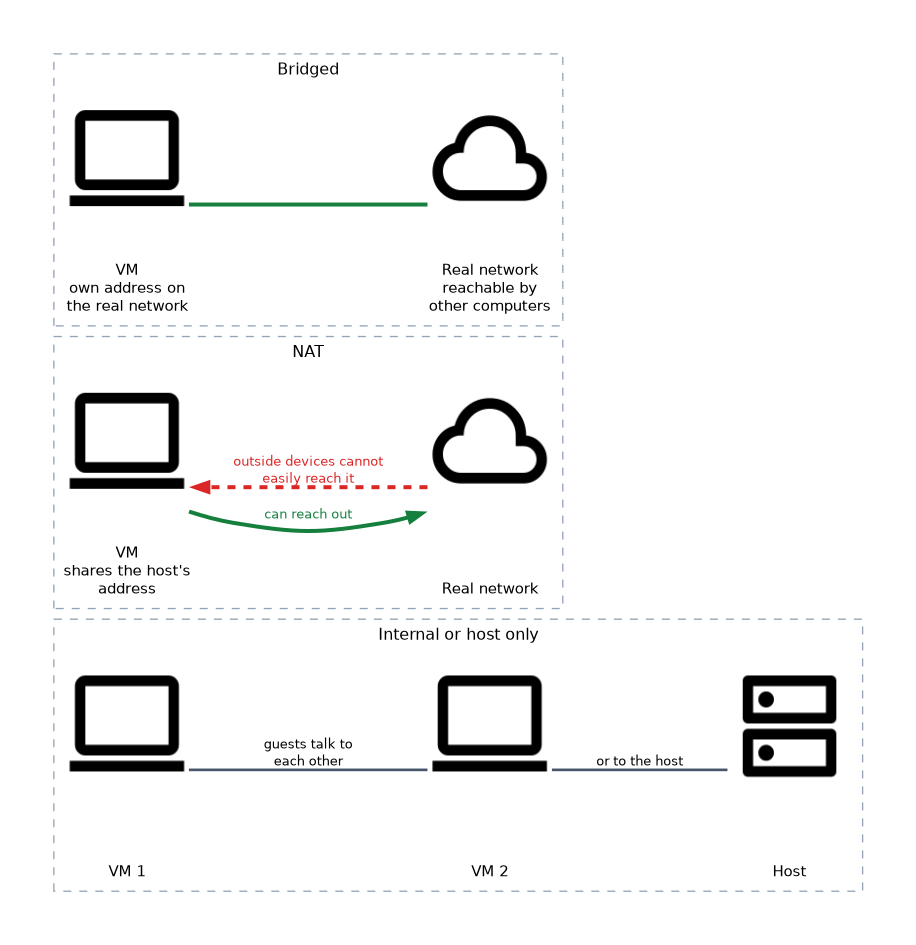 A virtual switch connects the guests to each other and to the physical network. Common choices are:
- Bridged: the VM appears on the real network with its own address, like a separate computer.
- Network address translation (NAT): the VM shares the host's address and can reach out, but outside devices cannot easily reach it.
- Internal or host only: guests can talk only to each other or to the host.
Pick internal networking for a safe test lab and bridged networking when other computers must reach the VM.
Virtual disks and snapshots
A virtual disk is a file or set of files that acts as a hard drive for the VM. This makes it easy to copy, move or back up a whole machine.
A snapshot saves the state of a VM at a moment in time, so you can return to it later. Snapshots are useful before a risky change such as an update. They are not a replacement for backups, because they depend on the original disk file.
Starting out
- Check that the CPU and firmware support virtualization and that the feature is turned on.
- Install a hypervisor.
- Create a VM and give it cores, memory and a virtual disk.
- Attach an operating system installer and install it.
- Install the guest tools or drivers that improve speed and integration.
If a hypervisor will not start a 64 bit guest, check that hardware virtualization is enabled in the firmware settings.
Security of virtual machines
Each guest needs updates, antimalware and a firewall like a real computer. The hypervisor needs updates too, because a flaw there could expose all guests. Keep test and production guests apart.
What to remember for the exam
- A VM runs on a host under a hypervisor; the VM is the guest.
- Type 1 runs directly on hardware; type 2 runs on top of an operating system.
- Guests share the host's processor, memory, storage and network.
- Virtualization support in the CPU may need to be enabled in firmware.
- Bridged networking gives the VM its own address on the real network.
- NAT networking lets the VM go out through the host's address.
- A snapshot saves a VM state; it is not a backup.
- Guests need patches and security software.
Common mistakes
Giving all host memory to guests. The host needs some for itself, so overcommitting slows everything.
Treating snapshots as backups. A lost or damaged disk file loses the snapshots too.
Forgetting to enable virtualization in firmware. Without it a hypervisor may not run or may run slowly.
Mixing up type 1 and type 2. Type 1 sits on hardware, while type 2 needs a host operating system.
Ignoring guest security. A VM that is unpatched is as exposed as a real computer.
Check yourself
What is the difference between a type 1 and a type 2 hypervisor?
A type 1 runs directly on the hardware, while a type 2 runs as an application on a host operating system.
What does a snapshot do?
It saves the state of a virtual machine so you can return to that point later.
What setting often needs enabling before a hypervisor works well?
Hardware virtualization support in the firmware settings.
Topic 1 of 4 in Virtualization and Cloud Computing
Test yourself on Virtualization and Cloud Computing
The full CompTIA A+ 220-1201 question bank has 856 questions, with timed practice exams and an explanation for every answer.
This study guide is independent and is not affiliated with, endorsed by, or sponsored by CompTIA. Vendor names, certification names and exam codes are trademarks of their respective owners and are used for identification only.