Networking · Topic 8 of 10
SOHO Network Configuration
Configure a small office or home network: router setup, wireless security, DHCP, NAT, port forwarding, UPnP, content filtering, QoS and firmware updates.
- 5 min
- Includes a diagram
- Change default credentials and update firmware first.
- Use WPA3 if possible, WPA2 otherwise; avoid WEP and basic WPA.
- Turn off WPS, or at least its PIN method, for safety.
What it is
A small office or home office (SOHO) network is usually built around one multi function router. That device acts as a router, switch, wireless access point, firewall and DHCP server in a single box.
Setting it up well means securing the router, planning the addressing and wireless, and opening only the services that people need.
How it works
First steps on a new router
- Connect the router to the modem and a computer, and open its web page using the default address.
- Change the default administrator name and password at once.
- Update the firmware, which is the software inside the router, to fix known flaws.
- Set the time, the network name and the wireless security.
- Review the other settings and save them.
Leaving the default administrator password in place lets anyone on the network, and sometimes outside it, change the router settings.
Wireless settings
- Service set identifier (SSID): the network name. Pick a name that does not reveal personal details.
- Security: use Wi-Fi Protected Access 3 (WPA3) where the devices support it. Wi-Fi Protected Access 2 (WPA2) is the usual choice otherwise. Avoid the old Wired Equivalent Privacy (WEP) and the original Wi-Fi Protected Access (WPA), which are weak.
- Passphrase: use a long one.
- Band and channel: use 5 GHz for speed and 2.4 GHz for reach. Pick a quiet channel or leave it on automatic.
- Guest network: a separate wireless network for visitors, kept away from the main one.
- Wi-Fi Protected Setup (WPS): a quick join method with a push button or a personal identification number (PIN). The PIN method has known weaknesses, so turning it off is safer.
Hiding the SSID and filtering by Media Access Control (MAC) address add little real security, because both can be bypassed.
Addressing and DHCP
The router normally runs the Dynamic Host Configuration Protocol (DHCP) with a scope of private addresses, such as 192.168.1.100 to 192.168.1.199, and its own address, such as 192.168.1.1, serves as the default gateway. Fixed devices such as printers can use a reservation or a static address outside the scope.
Network Address Translation
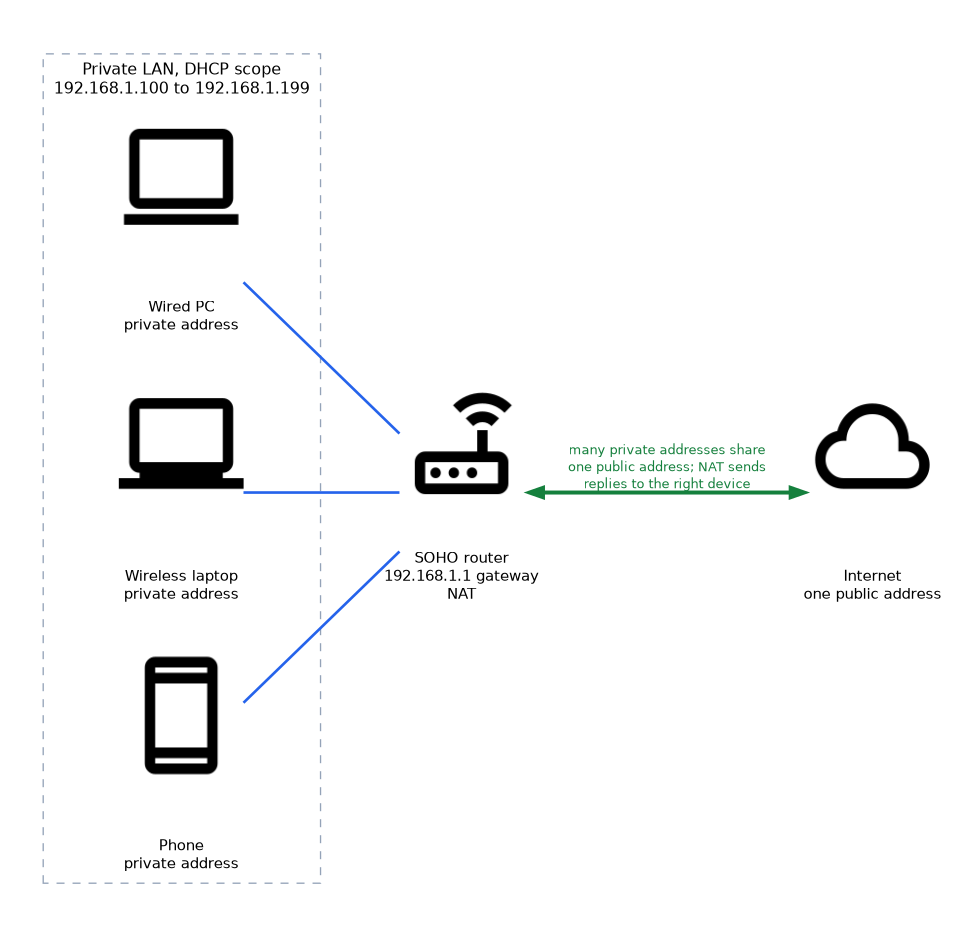 Network Address Translation (NAT) lets many private addresses share one public address from the provider. The router tracks each connection and sends replies to the right device. NAT also hides internal addresses from the outside, which acts as a basic barrier.
Opening services to the outside
| Feature | What it does |
|---|---|
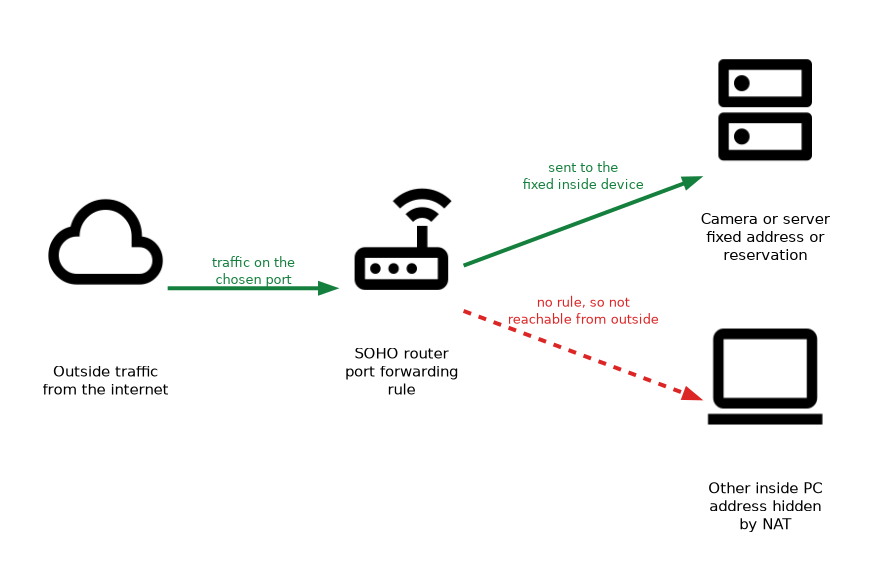
| Port forwarding | Sends outside traffic on a chosen port to a fixed inside device, such as a camera or server |
| Port triggering | Opens a port only after an inside device sends traffic on another port |
| Universal Plug and Play (UPnP) | Lets devices ask the router to open ports on their own; convenient but a security risk |
| Demilitarized zone (DMZ) | Sends all unsolicited traffic to one device, which then sits outside normal protection |
Port forwarding works best with a static address or reservation for the target device, so the rule keeps working.
Other common settings
- Content filtering and parental controls: block categories of site or set time limits.
- Quality of Service (QoS): gives priority to voice, video or chosen devices when the link is busy.
- Firewall rules: block or allow traffic by address or port.
- Dynamic Domain Name System (DNS): keeps a name pointed at a home address that changes.
- Wired connections: use Ethernet for servers, desktops and anything that needs steady speed.
Placing the access point
Put the router or access point in a central, raised spot away from metal and microwave ovens. Add more access points joined by cable if one cannot cover the whole building.
What to remember for the exam
- Change default credentials and update firmware first.
- Use WPA3 if possible, WPA2 otherwise; avoid WEP and basic WPA.
- Turn off WPS, or at least its PIN method, for safety.
- A guest network separates visitors from the main network.
- DHCP gives addresses; NAT lets private addresses share one public address.
- Port forwarding sends outside traffic on a port to a fixed inside device.
- UPnP is convenient but widens the attack surface.
- QoS gives priority to chosen traffic; content filtering blocks site categories.
Common mistakes
Forwarding a port to a DHCP device without a reservation. The address may change and the rule then points to the wrong device.
Relying on a hidden SSID. Hiding the name is not security; use strong encryption.
Using a DMZ as a quick fix. It exposes the device fully and should be a last resort.
Skipping firmware updates. Router flaws are often fixed in updates, and an old firmware leaves them open.
Putting guests on the main network. A guest network keeps their devices away from internal files and printers.
Check yourself
What should you change first on a new SOHO router?
The default administrator username and password.
What does port forwarding do?
It sends incoming traffic on a chosen port to a specific device inside the network.
Which wireless security option is preferred when all devices support it?
WPA3 (Wi-Fi Protected Access 3), with WPA2 as the usual fallback.
Topic 8 of 10 in Networking
Test yourself on Networking
The full CompTIA A+ 220-1201 question bank has 856 questions, with timed practice exams and an explanation for every answer.
This study guide is independent and is not affiliated with, endorsed by, or sponsored by CompTIA. Vendor names, certification names and exam codes are trademarks of their respective owners and are used for identification only.