Mobile Devices · Topic 5 of 5
Mobile Email, Sync and Management
Set up mobile email, synchronise contacts and calendars, and understand mobile device management, app support and screen lock security for the exam.
- 4 min
- Includes a diagram
- IMAP keeps mail on the server and suits several devices; POP3 downloads mail to one device.
- SMTP sends mail.
- Sync can cover contacts, calendar, mail, photos and app data.
What it is
Mobile devices are used for work and personal tasks, so they need email, synchronised data and the right apps. In a company they are also managed, so that lost devices and risky apps do not expose business data.
This page covers email setup, synchronisation, app support and the tools that organisations use to manage phones and tablets.
How it works
Setting up a mobile device usually means signing in with an account, letting it sync data, and applying security rules.
Email accounts
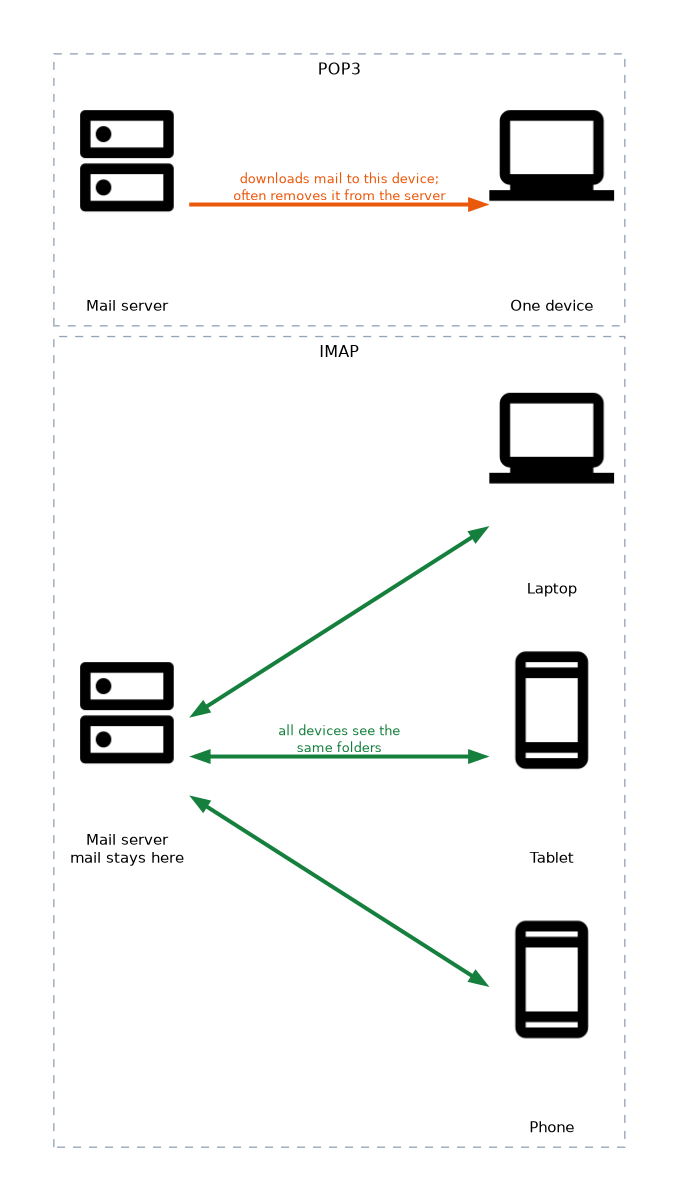 A personal account is added by entering the address and password; most phones detect the server settings on their own. Business accounts often use a corporate mail system, such as Microsoft Exchange, and may require a profile pushed by the company.
When settings must be typed in, the common protocols differ in how they treat the mailbox.
| Protocol | Purpose | Mailbox behaviour |
|---|---|---|
| Post Office Protocol 3 (POP3) | Receive mail | Downloads mail to one device; often removes it from the server |
| Internet Message Access Protocol (IMAP) | Receive mail | Mail stays on the server, so many devices see the same folders |
| Simple Mail Transfer Protocol (SMTP) | Send mail | Sends mail out to the server |
IMAP suits a person with a phone, tablet and laptop, since all of them show the same mail. Secure versions of these protocols use encryption and different port numbers, which are covered in the networking chapter.
Synchronisation
Synchronisation (sync) keeps the same data on the device and in an online account. Common items are:
- contacts and calendars
- photos and documents
- app data and settings
- browser bookmarks and passwords
Sync can be set to run on Wi-Fi only to save cellular data. Check that the sync is switched on for each item, and that the account is signed in, when data fails to appear on another device.
App support
Apps normally come from an official store run by the platform owner, which checks them for safety. Installing an app from outside the store (sideloading) skips that check and raises risk.
To support apps, a technician makes sure the device has enough free storage, the operating system is up to date, the app is up to date and permissions are right. Permissions control access to the camera, microphone, contacts and location. A common fix is to update the app, restart the device, or remove and reinstall the app.
Mobile device management
Mobile device management (MDM) software lets an organisation enrol phones and tablets and control them from a central console. It can:
- enforce a passcode and screen lock
- install or remove apps
- apply Wi-Fi, email and virtual private network (VPN) settings
- locate a lost device
- wipe the device remotely if it is lost or stolen
Mobile application management (MAM) is narrower and manages the business apps and data, not the whole device. It is useful when employees use their own devices, a practice called bring your own device (BYOD).
Locking and authentication
Screen locks protect the data when a device is lost. Options include a personal identification number (PIN), a password, a pattern, and biometrics such as a fingerprint or a face scan. A device can also wipe itself after too many failed attempts.
Multifactor authentication (MFA) adds a second proof, such as a code from an authenticator app, when signing in to accounts.
A remote wipe erases the device, so use it only for a lost or stolen device after you have confirmed it is not just misplaced and that data is backed up.
What to remember for the exam
- IMAP keeps mail on the server and suits several devices; POP3 downloads mail to one device.
- SMTP sends mail.
- Sync can cover contacts, calendar, mail, photos and app data.
- Official app stores check apps; sideloading skips that check.
- MDM controls the whole device; MAM controls only business apps and data.
- Remote wipe and locate help when a device is lost.
- BYOD means employees use personal devices for work.
- Screen locks use PIN, password, pattern or biometrics, and MFA adds a second proof.
Common mistakes
Choosing POP3 for multi device users. POP3 pulls mail to one device, so the others never see it. IMAP is usually better.
Leaving sync off. Missing contacts or calendar items are often a disabled sync setting, not a lost file.
Sideloading from unknown sources. An app from outside the store can contain malware.
Wiping before locating. Try locating or locking the device first, since a wipe cannot be undone.
Mixing up MDM and MAM. MDM covers the device; MAM covers apps and their data only.
Check yourself
Which email protocol keeps mail on the server so several devices show the same folders?
IMAP (Internet Message Access Protocol).
What is the difference between MDM and MAM?
MDM manages the whole device, while MAM manages only business apps and their data.
What is sideloading?
Installing an app from outside the official store, which skips the store's safety checks.
Topic 5 of 5 in Mobile Devices
Test yourself on Mobile Devices
The full CompTIA A+ 220-1201 question bank has 856 questions, with timed practice exams and an explanation for every answer.
This study guide is independent and is not affiliated with, endorsed by, or sponsored by CompTIA. Vendor names, certification names and exam codes are trademarks of their respective owners and are used for identification only.