Hardware and Network Troubleshooting · Topic 7 of 7
Troubleshooting Printer Issues
Diagnose printer faults such as streaks, faded or ghosted prints, smudging, jams, feeding problems, garbled output, queue errors and lost connections.
- 5 min
- Includes a diagram
- Regular marks down the page point to a dirty or damaged roller or drum.
- Streaks come from a dirty drum, nozzles or thermal head, or low supplies.
- Smearing toner means a failed fuser or wrong paper.
What it is
Printer faults fall into three groups. Print quality faults affect how the page looks, paper handling faults involve feeding and jams, and connection or software faults stop jobs from arriving or printing.
Read the symptom on the page carefully, because the pattern often names the failed part. Use the six step method and take care with hot and powered parts.
How it works
Print quality faults
| Symptom | Likely causes |
|---|---|
| Streaks or lines | Dirty or damaged drum or roller, clogged inkjet nozzles, low toner, dirty thermal head |
| Faded or light prints | Low toner or ink, wrong paper, worn drum, toner saving mode |
| Ghost images | Faint copy of a previous image from a worn drum or fuser |
| Toner not fusing, smearing | Failed fuser, wrong paper type |
| Creased pages | Worn rollers, wrong paper, damp paper, fuser rollers |
| Garbled characters | Wrong driver, damaged cable, data error, wrong page language |
| Vertical lines | Dirty or damaged drum, charging parts or print head parts |
| Wrong colours or missing colour | Empty cartridge, clogged nozzles, needs calibration, wrong driver |
| Marks that repeat at regular spacing | A damaged or dirty roller or drum, spacing matching its circumference |
| Speckling or stray toner dots | Loose or leaking toner, dirty or worn drum or transfer parts |
| Grinding noise | Worn gears or rollers, or a foreign object in the paper path |
| Finishing faults (staples, hole punch) | Empty or jammed staple unit, full punch tray |
| Wrong page orientation | Driver or print setting set to portrait or landscape wrongly |
Clean or replace the failing part. Inkjets often need head cleaning and alignment. Lasers may need a new toner cartridge, a drum or a maintenance kit.
Paper handling faults
- Paper jam: open the covers, find the stuck sheet, and pull it along the paper path in the normal direction. Check for torn scraps. Repeated jams point to worn rollers or damp or wrong paper.
- Paper not feeding: check the tray, the paper guides, the paper type, humidity and the pickup rollers.
- Multiple pages feeding: paper that is stuck together or a worn separation pad.
- Wrong tray used: check the driver settings and tray assignment.
Fan the stack, use fresh paper and store it flat and dry.
The fuser inside a laser printer stays very hot after use, so switch off, unplug and let it cool before reaching into the paper path.
Connection and software faults
| Symptom | Likely causes and checks |
|---|---|
| No connectivity | Printer off, cable loose, wrong Wi-Fi network, changed address; confirm the address on the printer panel and test the connection from a computer |
| Printer will not print | Offline status, stuck queue, wrong default printer, wrong port or address |
| Print queue backed up | A stuck job; clear the job and restart the print spooler service |
| Access denied | Missing permission on a shared printer or print server |
| Unable to install the printer | Wrong driver for the operating system, missing permission, blocked connection |
| Low memory error | A big or complex job; simplify it or add memory |
| Error codes or lights on the panel | Look up the code in the manual |
| Printing the wrong thing | Wrong default printer or settings |
The print spooler is the service that holds jobs in the queue before they print. Restarting it clears many stuck jobs.
Network printer problems
A printer on a network needs a stable address. If someone moved it or the address changed after a power cut, computers may point at the old address. Give it a fixed address or a reservation.
Check the Wi-Fi or Ethernet link, and update the firmware.
Impact, thermal and 3D printer faults
- Impact: faint print means a worn ribbon. Missing dots mean a damaged pin or a worn head.
- Thermal: faded print or streaks mean a dirty or worn heating element. Blank labels may mean the paper is loaded upside down.
- 3D printers: print does not stick to the plate (clean and level the bed), warped parts (bed or room temperature), a blocked nozzle (clean or replace), or layers shifting (belts, loose parts).
A fast route to the cause
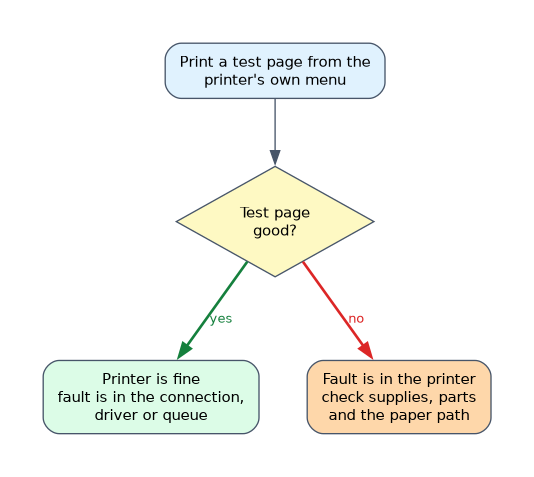
- Print a test page from the printer's own menu. If it is good, the printer is fine and the fault is in the connection, driver or queue.
- If the test page is bad, the fault is in the printer: check supplies, parts and the paper path.
A good internal test page and a failed job from the computer means the fault is the driver, the queue or the connection, not the printer hardware.
What to remember for the exam
- Regular marks down the page point to a dirty or damaged roller or drum.
- Streaks come from a dirty drum, nozzles or thermal head, or low supplies.
- Smearing toner means a failed fuser or wrong paper.
- Jams come from worn rollers, wrong paper or damp paper.
- Garbled output points to a wrong driver, cable or page language.
- A stuck queue is cleared by deleting jobs and restarting the print spooler.
- Print a test page from the printer to separate printer faults from computer faults.
- Fusers are hot; unplug and wait.
Common mistakes
Replacing toner when the drum is dirty. Streaks may be a drum or roller problem.
Pulling jammed paper the wrong way. Torn scraps cause repeat jams.
Ignoring the queue. Many "dead printer" cases are one stuck job.
Forgetting the address. A changed address breaks network printing.
Using the wrong paper. Damp or incorrect paper causes jams and smears.
Check yourself
Marks repeat every few centimetres down a page. What does this suggest?
A dirty or damaged roller or drum, whose circumference matches the spacing.
How do you clear a stuck print queue?
Delete the stuck job and restart the print spooler service.
What does a good printer self test page tell you?
The printer hardware works, so look at the driver, queue or connection.
Topic 7 of 7 in Hardware and Network Troubleshooting
Test yourself on Hardware and Network Troubleshooting
The full CompTIA A+ 220-1201 question bank has 856 questions, with timed practice exams and an explanation for every answer.
This study guide is independent and is not affiliated with, endorsed by, or sponsored by CompTIA. Vendor names, certification names and exam codes are trademarks of their respective owners and are used for identification only.