Hardware and Network Troubleshooting · Topic 6 of 7
Troubleshooting Network Issues
Diagnose intermittent wireless, slow speeds, limited connectivity, jitter, latency, no link and address conflicts using lights, cables and testers.
- 5 min
- Includes a diagram
- Start with the physical layer: cables, link lights and ports.
- A 169.254 address means DHCP failed and APIPA took over.
- An address conflict means two devices share one address.
What it is
Network faults show up as no connection, a slow connection or one that comes and goes. The cause may be the cable, the port, the wireless signal, the address settings, a service such as the Domain Name System (DNS), or the provider.
A good technician works from the bottom up: first the physical link, then addressing, then services. Use the six step method and change one thing at a time.
How it works
Symptoms and likely causes
| Symptom | Likely causes |
|---|---|
| No connectivity | Unplugged or bad cable, dead port, switch or router off, wireless off, airplane mode |
| Limited or local connectivity | No address from the Dynamic Host Configuration Protocol (DHCP) server, wrong gateway, router offline |
| Self assigned address starting 169.254 | The client could not reach DHCP and used Automatic Private IP Addressing (APIPA) |
| Intermittent connectivity | Loose or damaged cable, interference, weak signal, failing port or adapter |
| Slow transfer speeds | Congestion, bad cable, wrong speed on a port, interference, heavy use, a failing device |
| High latency | Overloaded link, long path, wireless problems, a busy device |
| Jitter and poor voice or video quality | Congestion, wireless interference, no prioritisation of voice traffic |
| Port flapping | A port that keeps going up and down, from a bad cable, a failing port or a faulty device |
| Internet Protocol (IP) address conflict | Two devices with the same address, from a static address inside the DHCP range |
| Can reach addresses but not names | DNS problem |
| External interference | Microwave ovens, other Wi-Fi, cordless phones, thick walls |
Jitter is the variation in the delay between packets. It harms calls and video more than it harms downloads.
Physical checks first
Look at the link lights on the network card and on the switch port. A steady or blinking light shows a link. No light suggests a cable or port fault.
- Reseat the cable and try another cable or port.
- Test the cable with a cable tester for opens, shorts and miswires.
- Use a loopback plug to check that a port or network card works.
- Use a tone generator and probe to find the right cable in a bundle.
- Check that the cable is within the 100 metre limit and is not run beside power cables.
Wireless problems
- Check signal strength and move closer to the access point.
- Use a Wi-Fi analyzer to find crowded channels and change channel.
- Compare 2.4 GHz and 5 GHz, since they behave differently.
- Look for interference from other devices.
- Check that the access point is not overloaded with clients.
- Restart the access point or router, and check for firmware updates.
Authentication failures
The device reaches the network but is refused at login. The cause decides the fix.
| Cause | Fix |
|---|---|
| Wrong Wi-Fi passphrase or security type | Forget the network and rejoin with the right passphrase, and match the security type the access point uses |
| Expired or locked user account | Unlock the account or reset the password |
| Remote Authentication Dial-in User Service (RADIUS) or 802.1X fault | Check that the RADIUS server is reachable, that the shared secret matches on both sides and that certificates are valid |
| MAC filtering | Add the device's Media Access Control (MAC) address to the allowed list |
Address and service problems
A device with a 169.254 address needs a working DHCP server. Check the server, the cable and the network path. An address conflict is fixed by removing the duplicate static address or by using a DHCP reservation.
If a user can reach sites by address but not by name, check the DNS settings. If nothing outside the local network works, check the default gateway and the router.
Narrowing down the scope
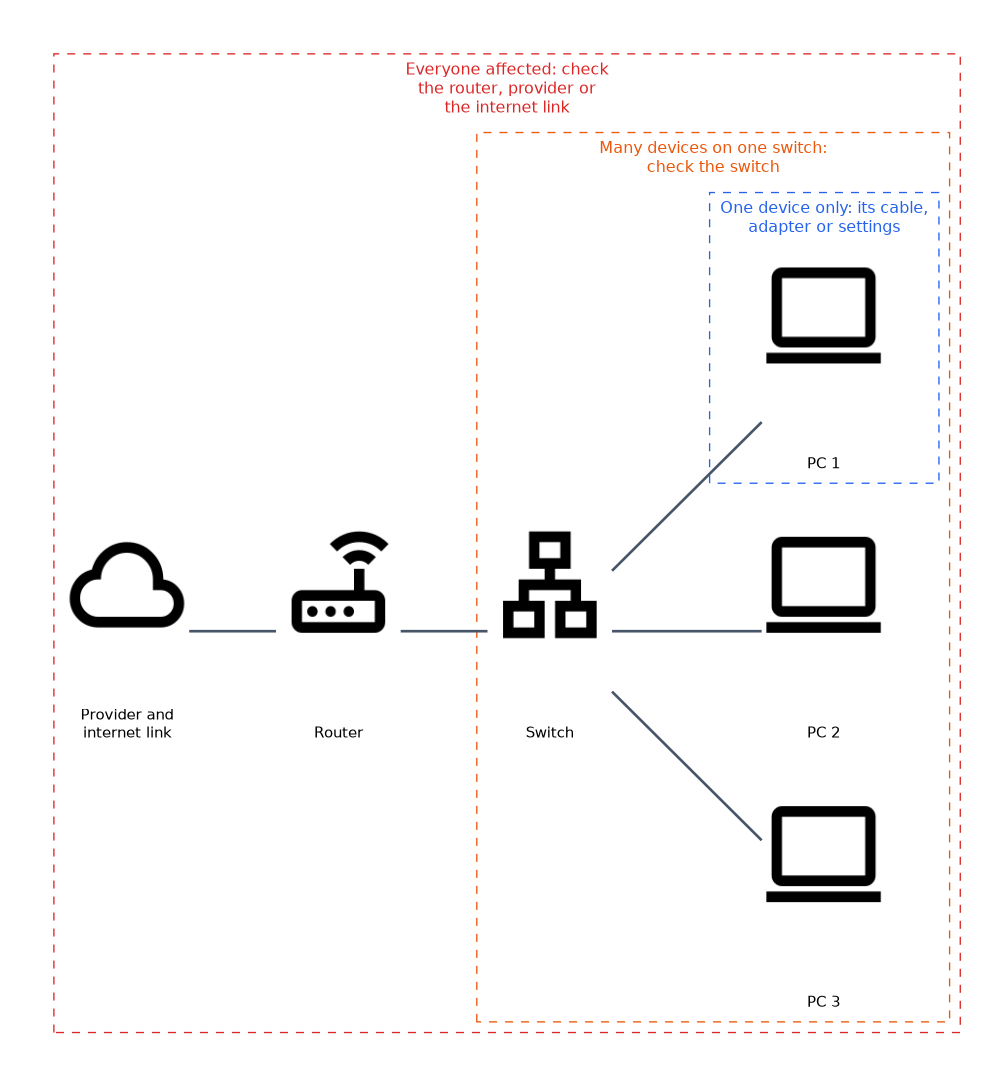 Ask whether one device or all are affected. One device points to its cable, adapter or settings.
Many devices on one switch point to the switch. Everyone points to the router, the provider or the internet link.
When only one computer has no network, swap its cable and port first. It is quick, and it separates a device fault from a network fault.
After the fix
Check that speed and stability are back, and record the cause. Suggest labelling cables, replacing damaged ones and keeping spare cables.
What to remember for the exam
- Start with the physical layer: cables, link lights and ports.
- A 169.254 address means DHCP failed and APIPA took over.
- An address conflict means two devices share one address.
- Intermittent faults often come from cables, interference or weak signal.
- Slow speeds come from congestion, bad cables or interference.
- Jitter and latency hurt voice and video most.
- A cable tester finds opens, shorts and miswires; a loopback plug tests a port.
- A Wi-Fi analyzer shows channels and signal strength.
Common mistakes
Changing settings before checking the cable. Physical faults are the most common.
Assuming the internet is down. A local DNS or gateway issue may be the cause.
Using a static address inside the DHCP range. This leads to conflicts.
Ignoring interference. Wireless faults often come from other devices on the same band.
Forgetting the scope. Check how many devices are affected before you decide where to look.
Check yourself
What does a 169.254.x.x address on a client mean?
The client could not get an address from DHCP and assigned itself an APIPA address.
Which tool tests a network port or card by returning its own signal?
A loopback plug.
What is jitter?
Variation in the delay of packets, which harms voice and video calls.
Topic 6 of 7 in Hardware and Network Troubleshooting
Test yourself on Hardware and Network Troubleshooting
The full CompTIA A+ 220-1201 question bank has 856 questions, with timed practice exams and an explanation for every answer.
This study guide is independent and is not affiliated with, endorsed by, or sponsored by CompTIA. Vendor names, certification names and exam codes are trademarks of their respective owners and are used for identification only.