Business Logic and Process Automation · Topic 4 of 7
Flow Types and Building Flows in Flow Builder
Choosing a Salesforce flow type and building flows: screen, record-triggered, schedule-triggered and autolaunched flows, elements, resources and loops.
- 4 min
- Includes a diagram
- Flow is the declarative automation tool; Workflow Rules and Process Builder are out of support.
- Screen flows are interactive; record-triggered, scheduled, platform event and autolaunched flows run in the background.
- Before save for same-record field updates; after save for related records and actions.
What it is
Flow is the Salesforce Platform's main declarative automation tool. In Flow Builder you drag elements onto a canvas to collect input, make decisions, read and change records, and call actions. Workflow Rules and Process Builder reached end of support on 31 December 2025; existing ones still run, but new automation is built in Flow.
The first decision is the flow type, which sets how the flow starts.
How it works
Choosing a flow type
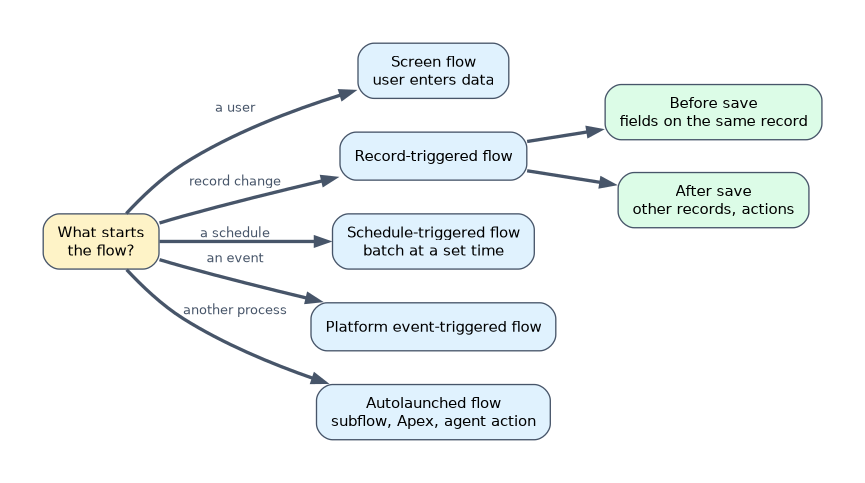
| Flow type | Starts when | Example |
|---|---|---|
| Screen flow | A user launches it from a page, button, action, app or utility bar | A guided intake wizard |
| Record-triggered flow | A record is created, updated or deleted | Set a field when an opportunity closes |
| Schedule-triggered flow | At a set date, time and frequency, for a batch of records | Close stale cases every night |
| Platform event-triggered flow | A platform event message is received | React to an event from an external system |
| Autolaunched flow (no trigger) | Called by another flow, Apex, a button, REST or an agent action | Reusable logic used as a subflow |
Only screen flows have screens and user interaction. All the others run in the background.
Record-triggered flow options
| Option | Use it for |
|---|---|
| Fast field updates (before save) | Changing fields on the triggering record; fastest, no extra save |
| Actions and related records (after save) | Creating or updating other records, sending email, calling actions |
| Run asynchronously path | Work that can run after the transaction, such as calling an external system |
| Scheduled paths | Work at a time relative to a date, such as three days before Close Date |
Entry conditions decide which records start the flow. You can run the flow every time conditions are met, or only when a record is updated to meet them, to avoid repeating actions.
Elements and resources
| Element | Purpose |
|---|---|
| Screen | Show fields and components to a user (screen flows only) |
| Decision | Branch by conditions |
| Assignment | Set variable values |
| Get Records | Read records |
| Create, Update, Delete Records | Change records |
| Loop | Go through a collection one item at a time |
| Action | Send email, post to Chatter, submit for approval, call Apex or a prompt template |
| Subflow | Call another flow |
Resources hold data: variables, collection variables, constants, formulas and text templates. The $Record global variable holds the triggering record in record-triggered flows, and $Record__Prior holds its values before the change.
Building efficient flows
- Never put Get, Create, Update or Delete elements inside a loop. Collect records in a collection variable and change them once after the loop.
- Use before-save flows for same-record updates.
- Use entry conditions so flows run only when needed.
- Reuse logic with subflows instead of copying elements.
A worked example: when an opportunity is set to Closed Won, sales operations want the Won Date set and an onboarding case created, and the account owner emailed three days after the close date. Both flows the builder creates use the entry condition "Stage equals Closed Won, only when updated to meet the condition". A before-save flow sets the Won Date. An after-save flow creates the case on its immediate path, and a scheduled path sends the email three days after Close Date.
If the requirement mentions "user enters" or "wizard", think screen flow. If it says "when a record is created or changed", think record-triggered flow.
How the exam asks about this
- "Guide users step by step to collect information." Screen flow.
- "Update a field on the same record as fast as possible." Before-save record-triggered flow.
- "Reusable logic called from several flows." Autolaunched flow used as a subflow.
What to remember for the exam
- Flow is the declarative automation tool; Workflow Rules and Process Builder are out of support.
- Screen flows are interactive; record-triggered, scheduled, platform event and autolaunched flows run in the background.
- Before save for same-record field updates; after save for related records and actions.
- Scheduled paths run actions at a time relative to a record's date.
- Keep data elements out of loops.
An Update Records element inside a loop runs once per item and can hit governor limits on large batches. Update the collection once after the loop.
Common mistakes
Building new Process Builder processes. New automation belongs in Flow.
Using an after-save flow to update the triggering record's own fields. Before save is faster.
Firing a flow on every edit. Use "only when a record is updated to meet the condition requirements".
Check yourself
Which flow type can show screens to users?
Only the screen flow.
Which record-triggered option is best for updating fields on the triggering record?
Fast field updates, which run before save.
How can a flow send a reminder three days before an opportunity's close date?
Add a scheduled path to a record-triggered flow, based on the Close Date field.
Topic 4 of 7 in Business Logic and Process Automation
Test yourself on Business Logic and Process Automation
The full Salesforce Platform App Builder question bank has 648 questions, with timed practice exams and an explanation for every answer.
This study guide is independent and is not affiliated with, endorsed by, or sponsored by Salesforce. Vendor names, certification names and exam codes are trademarks of their respective owners and are used for identification only.