802.11n · Topic 3 of 3
Chains, TX Power and Link Debugging for 802.11n
Learn how to set 802.11n chains with ht-txchains and ht-rxchains, how power works with several chains, and how to debug an n link per chain.
- 5 min
- Includes a diagram
ht-txchainsandht-rxchainschoose the active chains, numbered from 0.- One chain gives MCS 0 to 7, and two chains allow MCS 8 to 15.
- Never enable a chain with no antenna.
What it is
Chains are the parallel radio paths of an 802.11n card, and each one has its own antenna connection.
The number of chains sets how many streams the card can use. More chains give a higher speed, but they also need good antennas and cables on every path.
When an n link is slower than expected, the cause is very often one weak or dead chain. Debugging means checking each chain separately.
How it works
You choose which chains are active, you account for power across chains, and you compare per chain signals.
Chain settings
Each wireless interface lets you pick the chains for receive and transmit:
/interface wireless set wlan1 ht-rxchains=0,1 ht-txchains=0,1ht-rxchainslists the chains used for receiving.ht-txchainslists the chains used for transmitting.
The chains are numbered from zero.
A two chain card has chain 0 and chain 1. Using both gives the two stream rates. Using one limits the card to the one stream rates, which are MCS 0 to 7.
You might use fewer chains on purpose. For example, a link with one good antenna and one poor path can be more stable on a single chain. Or you might use one chain when only one antenna is fitted.
Do not enable a chain that has no antenna connected. A chain with no antenna can work badly.
Antennas and chains
Each chain needs its own antenna feed. A dual polarised antenna provides two feeds in one housing. Two chains with one single polarised antenna cannot work well, because both streams take the same path and cannot be separated.
TX power for n cards
An 802.11n card sends from several chains at once, so the power is a sum. Adding a second chain adds power. The wireless interface setting is a figure in dBm, and the total on air depends on the card and the number of chains.
Check what your card reports for its power before you work out EIRP. The rules about the legal limit apply to the total radiated power, so the number of chains counts as well as the antenna gain.
| Item | Effect on the legal sum |
|---|---|
| More chains | Higher total power |
| Higher antenna gain | Higher EIRP |
| Cable loss | Lower EIRP |
With frequency-mode=regulatory-domain, RouterOS applies the limit for you. With frequency-mode=manual-txpower you must do the sum with the real card figures.
Debugging an n link
An organised check works from the top down:
- Read the rate in the registration table. Note the number of streams and the width.
- If the stream count is lower than expected, look at the chains.
- Compare the signal on each chain.
- Check the channel width and noise.
- Test the real throughput.
Per chain signal
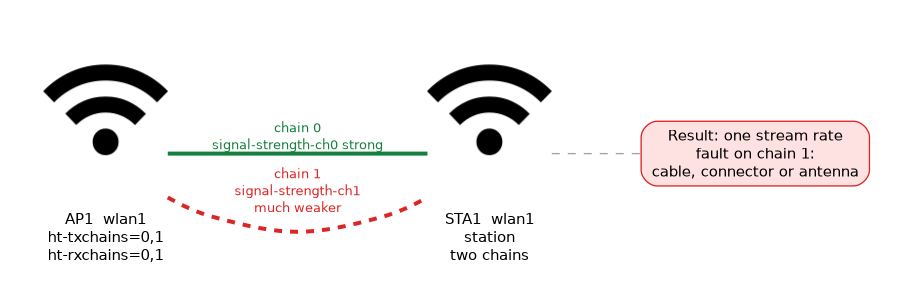 The registration table gives a signal value for each chain:
/interface wireless registration-table print detailLook at signal-strength-ch0 and signal-strength-ch1. With two good antennas of the same kind, the two values should be close.
| Observation | Likely cause |
|---|---|
| Both chains similar and strong | Healthy |
| One chain much weaker | Cable, connector or antenna fault on that chain |
| One chain missing | Chain not connected or disabled |
| Both weak | Distance, alignment or an obstacle |
Testing throughput
A rate in the table is not a speed test. Use a test between two RouterOS devices:
/tool bandwidth-test address=192.168.88.2 direction=bothThe test loads the link and shows what it really carries. Compare the result with the rate. A large gap points to retries, noise, a CPU limit or a settings problem such as aggregation.
Putting it together
If the speed is low, ask in order: Is the rate low, or is only the throughput low? If the rate is low, check chains, width and signal. If the rate is high but throughput is low, check retries, noise and the CPU of the router.
Always compare chain signals first when an n link runs at a single stream rate. It finds cable faults quickly.
What to remember for the exam
Seven facts cover this topic.
ht-txchainsandht-rxchainschoose the active chains, numbered from 0.- One chain gives MCS 0 to 7, and two chains allow MCS 8 to 15.
- Never enable a chain with no antenna.
- Each chain needs its own antenna feed, or a dual polarised antenna.
- Total power depends on the number of chains as well as the setting.
- The registration table shows
signal-strength-ch0andsignal-strength-ch1. - Test throughput with
/tool bandwidth-test, and compare it with the rate.
Common mistakes
Four errors are typical.
Enabling an unused chain. Without an antenna it can work badly.
Ignoring per chain signal. One bad chain hides behind a good looking average.
Forgetting the extra chains in the power sum. The legal total can be higher than the setting suggests.
Trusting the rate as the speed. The test tool shows the real throughput.
Check yourself
Work through these three questions.
Which settings choose the active chains on an n interface?
ht-txchainsandht-rxchainschoose the transmit and receive chains. The chains are numbered from 0.An n link shows a one stream rate. What do you check first?
Compare the signal on each chain in the registration table. One weak or missing chain is a common cause.
How do you measure the real speed of a link between two RouterOS devices?
Use
/tool bandwidth-testand compare the result with the rate in the registration table. A large gap points to retries, noise or other limits.
Topic 3 of 3 in 802.11n
Test yourself on 802.11n
The full MikroTik MTCWE question bank has 447 questions, with timed practice exams and an explanation for every answer.
This study guide is independent and is not affiliated with, endorsed by, or sponsored by MikroTik. Vendor names, certification names and exam codes are trademarks of their respective owners and are used for identification only.