HotSpot · Topic 1 of 5
HotSpot Introduction and Setup
Learn what a RouterOS HotSpot is, how it redirects clients to a login page, what the setup wizard creates and what must be ready before you run it.
- 5 min
- Includes a diagram
- A HotSpot is a captive portal that forces login before access.
- Each server runs on one interface, which needs an IP address.
- Clients normally get addresses from a DHCP server and a pool.
What it is
A HotSpot is a captive portal that makes users log in before they can use the network.
Cafes, hotels and campuses use it to control who gets internet access. A new client connects, opens a web page and is sent to a login page. After a successful login, the router lets that client's traffic through.
Each HotSpot server runs on one interface, and it works for wired and wireless clients alike.
How it works
The router blocks unauthenticated traffic, redirects web requests to a login page, and unblocks the client after login.
What the HotSpot does
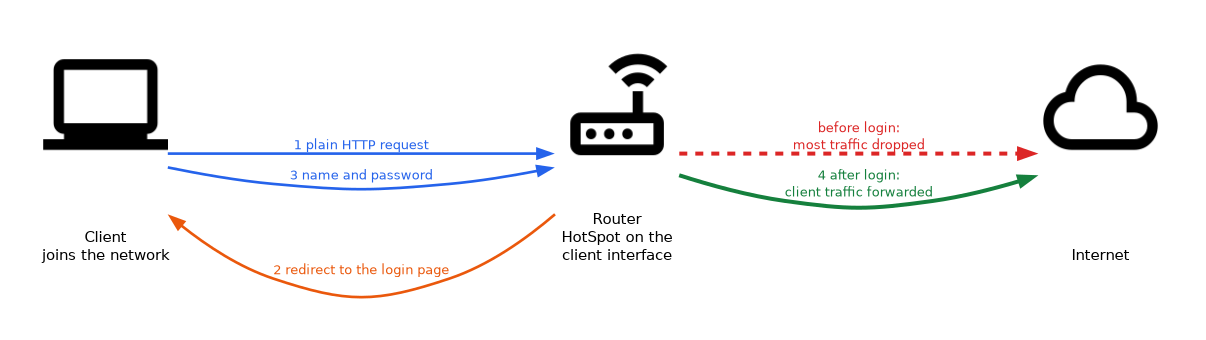 Until a client logs in, the router drops most of its traffic. An HTTP request from an unauthenticated client is redirected to the login page instead of reaching its destination.
HTTPS requests cannot be redirected cleanly, because the browser would show a certificate warning. Most devices detect the portal and open the login page themselves.
After login, the router tracks the client as an active user. It applies the limits of the user's profile, such as speed and time.
What must be ready first
Before you run the wizard, prepare the interface and the network behind it.
- an IP address on the interface that will serve the HotSpot
- an address source for clients, which is normally a DHCP server on that interface
- a working internet connection on the router, with DNS
- NAT, if clients use private addresses
The HotSpot interface is usually a bridge with the wireless and LAN ports. The interface must hold the address that the clients use as their gateway.
The setup wizard
/ip hotspot setupThe wizard asks a series of questions and builds the service for you.
| Question | What it decides |
|---|---|
| HotSpot interface | The interface that serves the clients. |
| Local address | The router address on that network. |
| Masquerade | Whether to add NAT for the clients. |
| Address pool | The addresses given to clients. |
| Certificate | The certificate for HTTPS login, or none. |
| SMTP server | The mail server used by the service. |
| DNS servers | The servers that clients are told to use. |
| DNS name | The name of the login page host. |
| User name and password | The first local user. |
What the wizard creates
The wizard builds several objects:
- an IP pool for the clients
- a DHCP server on the interface
- a HotSpot server profile and a HotSpot server
- dynamic firewall and NAT rules that redirect and filter clients
- the first local user
The firewall rules appear in the lists as dynamic entries. Do not edit them by hand. Change the HotSpot settings instead, and the rules follow.
Menus to know
| Menu | What it holds |
|---|---|
/ip hotspot | The HotSpot server on an interface. |
/ip hotspot profile | Settings shared by servers, such as login methods. |
/ip hotspot user | Local user accounts. |
/ip hotspot user profile | Limits for groups of users. |
/ip hotspot active | Users who are logged in now. |
/ip hotspot host | Every device seen on the interface. |
/ip hotspot ip-binding | Fixed rules for addresses and MACs. |
/ip hotspot walled-garden | Sites reachable before login. |
Checking the result
/ip hotspot print
/ip hotspot active print
/ip hotspot user print
The first command shows that the server exists and is enabled on the interface. A test client should be redirected to the login page. After login, it should appear in the active list.
When the login page does not appear
Check that the client received an address, that the router can resolve names, and that the HotSpot server is not disabled. A browser that opens a secure site first may not be redirected, so test with a plain HTTP site.
Version note
The HotSpot menus and the setup wizard exist in RouterOS v6 and v7. Names of dynamic firewall rules may differ between versions, so treat them as read only.
What to remember for the exam
Seven facts cover most setup questions.
- A HotSpot is a captive portal that forces login before access.
- Each server runs on one interface, which needs an IP address.
- Clients normally get addresses from a DHCP server and a pool.
/ip hotspot setupis the wizard.- The wizard creates the pool, DHCP server, server profile, server and firewall rules.
- Unauthenticated HTTP is redirected to the login page.
- Active users are listed in
/ip hotspot active.
Test the redirect with a plain HTTP site, because secure sites do not redirect cleanly.
Common mistakes
These four errors appear again and again.
No IP address on the interface. The wizard cannot work without a local address.
Skipping DHCP. Clients have no address, so they never reach the login page.
No DNS on the router. Clients cannot resolve names, so the redirect and the login fail.
Editing the dynamic firewall rules. The HotSpot rebuilds them, and manual changes cause odd behaviour.
Running the wizard on an interface that is also your management network can lock out your own devices. Pick a client only interface.
Check yourself
Work through these three questions.
What is a HotSpot, and what does it do with traffic from a client that has not logged in?
A HotSpot is a captive portal. It blocks most traffic from an unauthenticated client and redirects its web requests to a login page.
What must be ready before running
/ip hotspot setup?The interface needs an IP address, clients need an address source such as DHCP, and the router needs working internet and DNS.
Which objects does the setup wizard create?
It creates an IP pool, a DHCP server, a server profile, the HotSpot server, dynamic firewall rules and the first local user.
Topic 1 of 5 in HotSpot
Test yourself on HotSpot
The full MikroTik MTCUME question bank has 482 questions, with timed practice exams and an explanation for every answer.
This study guide is independent and is not affiliated with, endorsed by, or sponsored by MikroTik. Vendor names, certification names and exam codes are trademarks of their respective owners and are used for identification only.