Prepare infrastructure for devices · Topic 5 of 7
Intune Roles, Scope Tags and Multi Admin Approval
MD-102 Intune administration: built-in and custom roles for Intune and Windows 365, scope tags for distributed IT, and Multi Admin Approval access policies.
- 6 min
- Includes a diagram
- Roles are permissions, assignments add members, scope groups and scope tags.
- Scope tags limit visibility. The Default tag applies to everything until you tag objects.
- MAA protects apps, compliance policies, settings catalog configuration policies, wipe, retire and delete actions, RBAC, Windows scripts and device categories.
What it is
Intune uses role based access control (RBAC) to decide what each administrator can do. A role is a set of permissions, a role assignment ties the role to admins, members and a scope, and scope tags limit which objects those admins see. Multi Admin Approval (MAA) adds a second person to approve risky changes. Together they support a multi admin environment where no one holds more power than needed.
How it works
Built in and custom roles
| Role | Typical use |
|---|---|
| Policy and Profile Manager | Create and manage compliance, configuration and enrollment policies |
| Application Manager | Manage apps and app protection |
| Help Desk Operator | Perform remote tasks, collect diagnostics, offer Remote Help |
| Endpoint Security Manager | Manage security baselines, endpoint security policies and the Defender connector |
| Read Only Operator | View information only |
| Intune Role Administrator | Manage custom Intune roles and assignments |
| School Administrator | Manage Intune for Education |
A custom role lets you pick exact permissions by category, such as Mobile apps, Managed devices, Remote tasks and Multi Admin Approval. Use custom roles for least privilege. Windows 365 has its own roles, such as the Windows 365 Administrator, which can provision Cloud PCs, and Intune roles can also cover Cloud PC tasks. The Microsoft Entra Intune Administrator role gives full access to Intune and is a privileged role.
Role assignments
A role assignment has these parts.
| Part | Meaning |
|---|---|
| Members (Groups) | The Entra groups whose members get the role |
| Scope (Groups) | Which users or devices the admins may manage |
| Scope (Tags) | Which tagged objects they can see |
An admin can only act on objects that fall within the assignment's scope groups. Several assignments combine for a person, giving the union of what they allow.
Scope tags and scoped administration
A scope tag is a label you attach to Intune objects (policies, apps, devices, profiles, enrollment profiles) and to role assignments. A role assignment with a tag lets the admin see only objects that carry that tag. Every tenant has a built in Default tag that applies to all objects until you assign others. Typical use: tag all objects for the Sales region with Sales, and give the regional help desk a role assignment with the Sales tag and the Sales device group as scope.
Rules to remember:
- A new object a scoped admin creates gets the tags of their assignment automatically.
- Scope tags control what is visible. Scope groups control what the admin can act on. Both are needed for a clean boundary.
- Tags are also used to limit who sees Enrollment Status Page or Autopilot profiles.
Multi Admin Approval
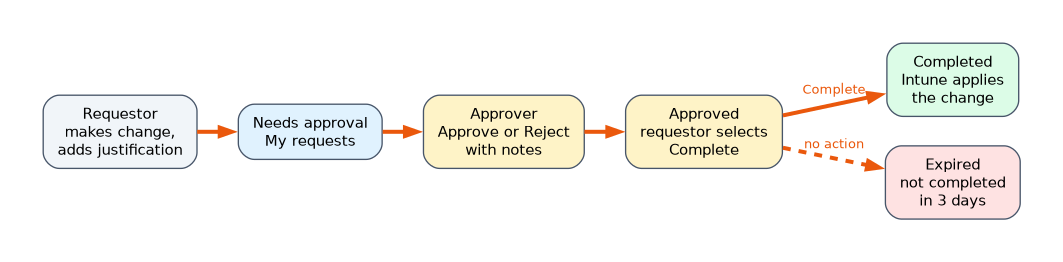 MAA requires that a second administrator approves a change before Intune applies it. You create access policies under Tenant administration, Multi Admin Approval. Each access policy has one resource type and an approver group. Protected resource types are:
- Apps (app deployments, not app protection policies)
- Compliance policies
- Configuration policies created in the settings catalog
- Device actions: wipe, retire and delete
- Role based access control changes
- Scripts for Windows devices
- Tenant configuration, such as device categories
How the workflow runs:
- The requestor makes a change and enters a business justification.
- The request waits in My requests with the status Needs approval.
- A member of the approver group opens Received requests and selects Approve or Reject, with notes.
- After approval, the requestor must open the request and select Complete, and only then does Intune apply the change.
- If a request is not completed within 3 days, it expires and must be resubmitted.
Requirements and rules:
- The tenant needs at least two admin accounts.
- The approver group must be an Entra security group and must be assigned to an Intune role. It needs the resource's Read permission.
- An admin cannot approve their own request, even a Global Administrator or Intune Administrator.
- Intune does not send notifications for requests, so tell approvers directly.
- Changes to access policies themselves need approval.
- Protect the Role type with care. If it blocks the RBAC changes that MAA needs, delete that access policy and fix the role assignments.
- Up to 50 enterprise applications can be excluded from an access policy for automation that uses app authentication.
A worked scenario
A company with offices in three countries wants local IT to manage only local devices. The admin creates a scope tag for each country, assigns it to country groups and policies, and gives each local team a Policy and Profile Manager role assignment with the matching tag and scope group. To reduce the risk of a stolen admin account, she adds an access policy for device actions, with a security group of senior admins as approvers. When a technician requests a wipe, a senior admin approves it, and the technician selects Complete.
What to remember for the exam
- Roles are permissions, assignments add members, scope groups and scope tags.
- Scope tags limit visibility. The Default tag applies to everything until you tag objects.
- MAA protects apps, compliance policies, settings catalog configuration policies, wipe, retire and delete actions, RBAC, Windows scripts and device categories.
- The requestor completes the change after approval, and an approved request expires after 3 days if not completed.
- The approver group must be a security group assigned to an Intune role, and nobody approves their own request.
Intune does not notify approvers of new MAA requests, so urgent changes need a message outside Intune.
How the exam asks about this
- "Regional admins must only see their region's objects." Scope tags with scoped role assignments.
- "A wipe must be approved by a second administrator." A Multi Admin Approval access policy for device actions.
- "The change was approved but nothing happened." The requestor must select Complete.
- "Give help desk staff permission to collect diagnostics only." A custom role or the Help Desk Operator role.
Common mistakes
Assuming a tag alone limits actions. Scope groups do that.
Using a distribution list as approver group. It must be a security group.
Forgetting to complete an approved request. It expires after 3 days.
Self approval. It is never allowed.
Check yourself
What do scope tags control?
Which tagged Intune objects an admin can see.
Who selects Complete on an approved MAA request?
The original requestor.
Which device actions can an MAA access policy protect?
Wipe, retire and delete.
Topic 5 of 7 in Prepare infrastructure for devices
Test yourself on Prepare infrastructure for devices
The full Microsoft MD-102 question bank has 658 questions, with timed practice exams and an explanation for every answer.
This study guide is independent and is not affiliated with, endorsed by, or sponsored by Microsoft. Vendor names, certification names and exam codes are trademarks of their respective owners and are used for identification only.