Manage and maintain devices · Topic 1 of 9
Windows Autopilot Profiles, Device Preparation and Modes
MD-102 Autopilot: choose between deployment profiles and device preparation policies, and pick user-driven, pre-provisioning or self-deploying mode.
- 6 min
- Includes a diagram
- Deployment profiles need registered devices (hardware hash). Device preparation needs none and supports Entra join only.
- Modes are user-driven, pre-provisioning and self-deploying. Self-deploying is Entra join only and needs TPM 2.0 attestation.
- Device preparation uses enrollment time grouping with a static group owned by the Intune Provisioning Client, and does not use the Enrollment Status Page.
What it is
Windows Autopilot turns a new device, straight from the factory, into a business ready one without reimaging. The user (or nobody) switches it on, signs in and policies and apps arrive. There are two generations of the service. Autopilot deployment profiles are the established approach, with several deployment modes. Windows Autopilot device preparation is the newer approach with a single policy, no hardware hash and near real time reporting.
How it works
Autopilot deployment profiles
A deployment profile sets the join type and the out of box experience (OOBE). Devices must be registered with the Autopilot service, normally by uploading the hardware hash (or by the OEM, or the Convert all targeted devices to Autopilot setting for devices already in Intune). You assign the profile to a device group, often filtered by a group tag. Key facts:
- A tenant can have up to 350 profiles.
- If a device is in several profiles' groups, it gets the oldest created profile. A device with no assigned profile gets the default one, or the profile targeted to all devices.
- The profile uses Microsoft Entra join (and, for hybrid, a domain join profile with the Intune Connector for Active Directory).
- Changes to a profile do not reach devices already enrolled until the device is reset and enrolled again.
- Options include hiding the license terms and privacy settings, user account type (administrator or standard), language and region, Allow pre-provisioned deployment and the device name template.
Deployment modes
| Mode | User | Typical use |
|---|---|---|
| User-driven | The user signs in, and the device is associated with that user | Standard corporate laptops. Works with Entra join and with hybrid join |
| Pre-provisioning (formerly white glove) | A technician (IT or a partner) prepares the device, then the user finishes sign in | Speeds up the user's first start by installing apps and policies in advance. Works with Entra join and hybrid join |
| Self-deploying | No user. The device enrolls without credentials | Kiosks, digital signs, shared devices. Entra join only |
Self-deploying and pre-provisioning rely on TPM 2.0 attestation, so the device needs a real TPM, and they do not support user affinity. Self-deploying devices have no user, so only device targeted compliance policies apply. Autopilot Reset returns a device to a business ready state without a full wipe, and existing devices can be redeployed with Autopilot through Configuration Manager or Intune.
Pre-provisioning has two phases. In the technician flow, blocking apps and device policies install, and the technician reseals the device. In the user flow, the user signs in and user targeted items finish. The Enrollment Status Page controls what blocks each phase.
Windows Autopilot device preparation
Device preparation is a simpler profile for new Windows 11 devices.
| Feature | Detail |
|---|---|
| Requirements | Windows 11 (22H2 or 23H2 with the March 2024 update or later, and 24H2). Microsoft Entra join only |
| Policy | One device preparation policy holds deployment settings, OOBE and the apps and PowerShell scripts to install |
| Grouping | Enrollment time grouping: the device joins a static device security group you pick at enrollment, and the policy delivers apps and scripts assigned to it immediately |
| Flows | User-driven and automatic (a mode that provisions without a user) |
| Identification | No hardware hash needed. Corporate identifiers only if you block personal devices. Device association can bind a physical device to your tenant |
| Selection | Only apps and scripts you choose in the policy install during OOBE. Others assigned to the group install after |
| Reporting | Near real time status for apps and scripts, and a deployment report |
| Mixing apps | LOB and Win32 apps can be mixed, because it does not use the Enrollment Status Page |
For device preparation, make the Intune Provisioning Client the owner of the device security group, so it can add devices at enrollment. If a device is also registered with Autopilot and not associated, the Autopilot deployment profile takes precedence. To use device preparation on a registered device, deregister it or associate it with the tenant.
Choosing between them
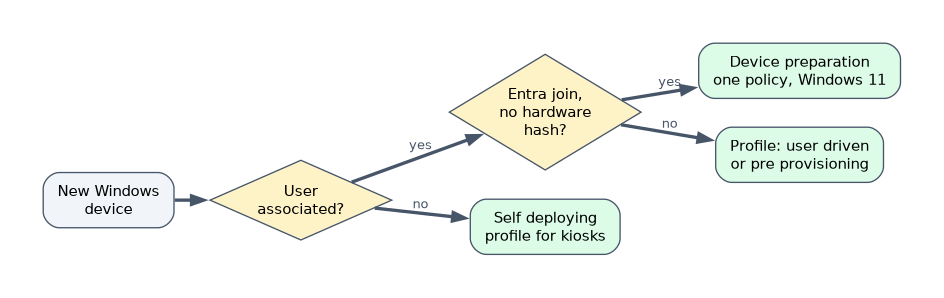
| Need | Choice |
|---|---|
| Kiosk or shared device without a user | Autopilot profile, self-deploying |
| Pre-installed apps so the user waits less on first sign in | Autopilot profile, pre-provisioning |
| Hybrid Entra join | Autopilot profile, user-driven hybrid |
| Simple, fast, observable deployment for new Windows 11 devices, Entra join, no hardware hash | Device preparation |
| A mix of LOB and Win32 apps in one deployment | Device preparation |
A worked scenario
A bank is rolling out 2,000 Windows 11 laptops. Branch staff get device preparation policies so devices join the group at sign in and install the bank's apps with a visible progress. A smaller set of devices for the call center goes through pre-provisioning, so the technician installs the large softphone suite before the devices are shipped. Lobby display screens use self-deploying mode with a device compliance policy.
What to remember for the exam
- Deployment profiles need registered devices (hardware hash). Device preparation needs none and supports Entra join only.
- Modes are user-driven, pre-provisioning and self-deploying. Self-deploying is Entra join only and needs TPM 2.0 attestation.
- Device preparation uses enrollment time grouping with a static group owned by the Intune Provisioning Client, and does not use the Enrollment Status Page.
- With several profiles, the oldest created profile wins.
- Device preparation allows LOB and Win32 apps in one deployment.
A question about a kiosk or a device with no user points to self-deploying mode.
How the exam asks about this
- "Devices shared by staff with no user association." Self-deploying mode.
- "A technician installs apps before the device reaches the user." Pre-provisioning.
- "No hardware hash upload, simple Entra join provisioning for Windows 11." Autopilot device preparation.
- "A device is in two profile groups." The oldest created profile applies.
Common mistakes
Choosing self-deploying for hybrid join. It is Entra join only.
Expecting profile edits to apply to enrolled devices. The device must be reset.
Forgetting the group owner in device preparation. Enrollment time grouping fails.
Mixing LOB and Win32 apps with an Enrollment Status Page. Installation can fail.
Check yourself
Which Autopilot approach needs no hardware hash?
Windows Autopilot device preparation.
Which mode suits a kiosk with no user?
Self-deploying.
What happens with several profiles for one device?
The oldest created profile applies.
Topic 1 of 9 in Manage and maintain devices
Test yourself on Manage and maintain devices
The full Microsoft MD-102 question bank has 658 questions, with timed practice exams and an explanation for every answer.
This study guide is independent and is not affiliated with, endorsed by, or sponsored by Microsoft. Vendor names, certification names and exam codes are trademarks of their respective owners and are used for identification only.