Manage and maintain devices · Topic 7 of 9
Endpoint Privilege Management, Enterprise App Catalog and Remote Help
MD-102 Intune Suite add-ons: Endpoint Privilege Management elevation rules, the Enterprise App Catalog, and Remote Help sessions, roles and licensing.
- 6 min
- Includes a diagram
- EPM uses an elevation settings policy (client and default response) and elevation rules (automatic, user confirmed, support approved, deny).
- Deny rules always win. Support approvals last 24 hours.
- The Enterprise App Catalog holds prepackaged Win32 apps for Windows. Auto update works with a Required assignment.
What it is
The Microsoft Intune Suite adds advanced capabilities beyond basic Intune. Three of them are covered here. Endpoint Privilege Management (EPM) lets standard users run specific tasks with elevated rights, so they do not need local administrator accounts. The Enterprise App Catalog is a ready made library of Windows apps for easy deployment and updates. Remote Help gives support staff secure, cloud based remote assistance. Each is also sold as a standalone add-on to Intune.
How it works
Endpoint Privilege Management
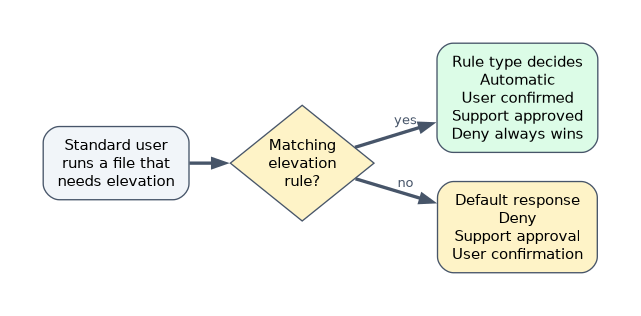 EPM removes the need for permanent local admin rights. Users stay standard users, and approved applications or tasks elevate when they need to. You set it up with two policy types, found under Endpoint security, Endpoint Privilege Management.
Elevation settings policy controls the client.
| Setting | Detail |
|---|---|
| Endpoint Privilege Management client | Turns EPM on |
| Default elevation response | What happens to files with no matching rule: Not configured (behaves like Deny), Deny all requests, Require support approval, Require user confirmation |
| Send elevation data for reporting | Which data goes to Intune, and the reporting scope |
Microsoft recommends Require support approval or Deny as the default, because Require user confirmation lets any file be elevated. The default only applies to elevations started from the right click Run with elevated access menu.
Elevation rules policy names the files that may elevate. A rule matches a file by file name, signature, publisher certificate, product name or hash and sets an elevation type.
| Elevation type | Behaviour |
|---|---|
| Automatic | Elevates silently, with no prompt. Use sparingly for trusted, business critical files |
| User confirmed | The user must confirm, and you can require business justification, Windows authentication or both |
| Support approved | An admin must approve the request, and the approval lasts 24 hours |
| Deny | Blocks elevation of that file |
When several rules match, Deny always wins, and then the order is user confirmed, elevate as current user, support approved and automatic. EPM reports show elevations, with the file and the user, and support approvals are handled in the Intune admin center by someone with the Elevation Requests permission. The EPM client installs by policy on Windows 10 and 11.
Enterprise App Catalog
The Enterprise App Catalog is a library of prepackaged Win32 apps that Microsoft maintains, with install and uninstall commands, detection rules and requirements already filled in. It is part of Enterprise App Management in the Intune Suite and covers Windows only, in exe and msi formats.
- Add one under Apps, Windows, Add, Enterprise App Catalog app, pick the app, version and architecture.
- Assign it like any Win32 app, with a required or available intent.
- Auto update keeps an app current. With a Required assignment, Intune finds a newer catalog version and updates the app, with no new app or supersedence to build.
- Guided supersedence creates a new app version with the supersedence relationship, if you want control over each update. Scope tags and assignments are not copied, so note them first.
- New versions normally appear within 24 hours of release, and within seven days when manual validation is needed.
- Supersedence has a limit of 10 nodes in a chain, and needs the Relate permission.
Remote Help
Remote Help lets a helper (support staff) assist a sharer (the user) with the sharer's consent.
| Fact | Detail |
|---|---|
| Licensing | A Remote Help license for both helper and sharer, as an add-on to Intune Plan 1 or 2, or in the Intune Suite |
| Identity | Both sides use accounts from your organization in Entra ID. Devices must be registered in Entra ID |
| Session types | View only, full control, and elevation (the helper can enter UAC credentials). Unattended control is available on some Windows and Android devices |
| Roles | Help Desk Operator has the permissions. A custom role needs Remote tasks: Offer remote assistance, Remote Assistance Connector: Read and at least one Remote Help permission such as View screen, Take full control or Elevation |
| Platforms | Windows, Windows 365 and Azure Virtual Desktop attended sessions, macOS (native app for full control), and Android dedicated Samsung Knox and Zebra devices |
| Security | Use Conditional Access for helpers (MFA or a compliant device). The service stores only session metadata, for 30 days. A compliance warning appears if the sharer's device is noncompliant |
A session times out after 5 minutes if the sharer does not respond. Remote Help is not enabled by default for a tenant, and takes time to turn on after licensing. Microsoft recommends giving level 1 support view only and level 2 support full control.
A worked scenario
Developers need to install a signed internal toolkit, but cannot be local admins. The admin deploys an EPM elevation settings policy with the default set to Require support approval, and an elevation rules policy that automatically elevates the toolkit installer by its publisher and hash. Standard desktop apps are installed from the Enterprise App Catalog with auto update. When a user's laptop misbehaves, a level 1 technician starts a Remote Help view only session and escalates to full control if needed.
What to remember for the exam
- EPM uses an elevation settings policy (client and default response) and elevation rules (automatic, user confirmed, support approved, deny).
- Deny rules always win. Support approvals last 24 hours.
- The Enterprise App Catalog holds prepackaged Win32 apps for Windows. Auto update works with a Required assignment.
- Remote Help needs a license for helpers and sharers, Entra accounts from your organization and Intune RBAC permissions.
- The Intune Suite and the standalone add-ons carry these capabilities.
Setting EPM's default elevation response to Require user confirmation allows every file to be elevated.
How the exam asks about this
- "Let a standard user install one approved tool as admin without prompts." An EPM elevation rule with automatic elevation.
- "Require an admin to approve unknown elevation requests." Default elevation response of Require support approval.
- "Deploy and keep a third party Win32 app current without packaging it." Enterprise App Catalog with auto update.
- "Help desk needs to see the user's screen but not control it." Remote Help view only permission.
Common mistakes
Choosing user confirmed as the default. It elevates everything.
Forgetting both sides need Remote Help licenses.
Assuming catalog apps work on macOS. They are Windows only.
Expecting supersedence to copy assignments. It does not.
Check yourself
How long does an EPM support approval last?
24 hours.
Which rule type wins when several EPM rules match?
Deny.
What do you need to enable Remote Help sessions?
A Remote Help license for helpers and sharers, plus Intune RBAC permissions for the helper.
Topic 7 of 9 in Manage and maintain devices
Test yourself on Manage and maintain devices
The full Microsoft MD-102 question bank has 658 questions, with timed practice exams and an explanation for every answer.
This study guide is independent and is not affiliated with, endorsed by, or sponsored by Microsoft. Vendor names, certification names and exam codes are trademarks of their respective owners and are used for identification only.