Basic Administrative Tasks for Copilot and Agents · Topic 5 of 5
Managing Agents
AB-900: set who can use agents, learn how agents are created, approve or reject requests, and monitor usage and lifecycle in the admin centers.
- 5 min
- Includes a diagram
- User access to agents can be All users, No users, or Specific users or groups.
- Agents submitted for the organization wait in Requests, where the admin publishes or rejects them.
- Publishing chooses the audience, the policy template and the permission consent.
What it is
Agents give people new power, so administrators need control over four things: who can use agents, who can create them, which ones get published to the organization, and how they perform over time. Most of this happens under Agents in the Microsoft 365 admin center. The Power Platform admin center covers the environments where Copilot Studio agents are built and run.
How it works
Configuring user access to agents
Go to Microsoft 365 admin center > Agents > Settings > User access. It controls who can use agents and plugins.
| Option | Result |
|---|---|
| All users | Everyone can access agents and plugins. This is the default |
| No users | Nobody can access them |
| Specific users or groups | Only the selected users or groups can use them |
The same Agents page has related settings:
- Agent and plugin access chooses which kinds may be installed: built by Microsoft, built by your organization, or built by external publishers.
- Sharing decides who may share agents built with Agent Builder: all users, no users, or specific users.
- Security templates and agent management rules apply preset policies and bulk actions to agents.
You can also reach the agent controls from Copilot > Settings > Data access > Agents.
Creating an agent
Agents can be built in several places.
| Tool | Who uses it |
|---|---|
| Agent Builder in Copilot | Users who describe an agent in plain language |
| Microsoft Copilot Studio | Makers who need actions, connectors and more control |
| SharePoint | Site owners who want an agent over site content |
| Microsoft 365 Agents Toolkit and Foundry | Developers |
A basic creation flow is the same everywhere: give the agent a name, write its instructions, add knowledge such as a SharePoint site or files, choose any actions, test it, and then share or submit it. An administrator can also upload a finished agent: Agents > All agents > Add agent, using a .zip package that holds the manifest and resources.
Agents made in Copilot Studio live in Power Platform environments. Environment security roles in the Power Platform admin center decide who can build and share them.
The approval process
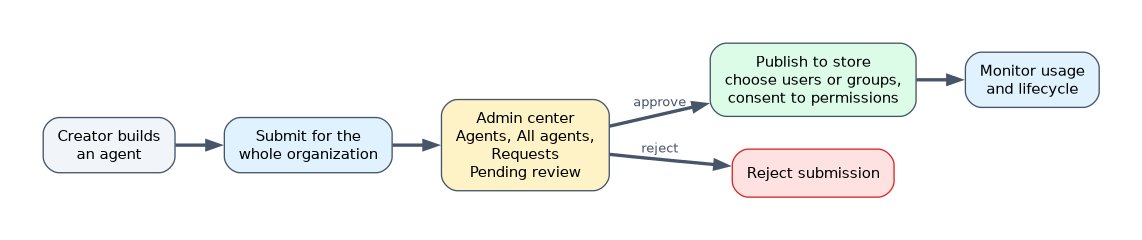 An agent that a user wants available to the whole organization cannot simply appear. It goes through admin approval.
- A creator publishes or submits the agent.
- The request appears at Microsoft 365 admin center > Agents > All agents > Requests, with a state such as Pending review, Pending update or Pending activate.
- The admin opens it and checks its description, owner, data sources, permissions and actions.
- The admin selects Publish to store, or Reject submission.
- The publishing wizard asks for the users or groups who can install it, optionally who gets it preinstalled, a policy template, and consent for the permissions the agent requests.
When a developer submits an update, the state is Pending update. Until the admin approves the update, users keep the previous version. Approving agent requests needs the AI Administrator or Global Administrator role.
Monitoring agents
| Where | What you see |
|---|---|
| Agents > Overview | A 30 day snapshot: total agents, active users, run time, pending requests, agents without owners, agents at risk, agents with exceptions |
| Agents > All agents > Registry | The full inventory with filters, export, and actions such as block |
| Agents usage report | How agents are used over time |
| Power Platform admin center | Environments, security roles and settings for Copilot Studio agents |
Some of these insights depend on the licenses in the tenant. For example, agent risk signals need an E7 or Agent 365 license.
The agent lifecycle runs from created, to shared by the creator, to published by the organization, to updated, and finally to blocked, removed or deleted. The Registry marks each entry as Shared by creator or Published by your org. When an owner leaves, the agent becomes ownerless, and the admin can reassign it, block it or delete it. Available actions differ by agent type and state.
A worked example
A sales rep builds an agent in Agent Builder that answers questions from the price book, and submits it for the whole company. The admin opens Agents > All agents > Requests, sees it as Pending review, and reviews the knowledge sources and permissions. She selects Publish to store, picks the sales group as the audience, applies a policy template and grants consent. A month later the rep leaves. The Overview now shows one agent without an owner. The admin assigns it to the sales manager.
How the exam asks about this
- "Only the pilot group should be able to use agents." Agents > Settings > User access, with Specific users or groups.
- "A user's agent is waiting for approval." Agents > All agents > Requests.
- "Find agents with no owner and agents flagged as risky." The Agents Overview or the Registry.
What to remember for the exam
- User access to agents can be All users, No users, or Specific users or groups.
- Agents submitted for the organization wait in Requests, where the admin publishes or rejects them.
- Publishing chooses the audience, the policy template and the permission consent.
- The Overview and Registry show usage, ownerless agents, risks and exceptions.
- The Power Platform admin center manages the environments that Copilot Studio agents run in.
Approval is not just a yes or no. Publishing also scopes who can install the agent, so an approved agent can still reach only one group.
Common mistakes
Looking for requests in the wrong place. Pending agents are under Agents > All agents > Requests, not in Teams or Copilot Studio.
Assuming sharing controls cover every agent. The Sharing setting applies to agents built with Agent Builder.
Ignoring ownerless agents. An agent whose creator has left still exists and may still be used, so review the Agents without owners view.
Check yourself
Where do you restrict agent use to a pilot group?
In the Microsoft 365 admin center under Agents > Settings > User access, by choosing Specific users or groups.
What are the two main actions on a requested agent?
Publish to store, which starts the publishing wizard, or Reject submission.
Where do you see agents without owners and agents at risk?
On the Agents Overview, which links to filtered views in the Registry.
Topic 5 of 5 in Basic Administrative Tasks for Copilot and Agents
Test yourself on Basic Administrative Tasks for Copilot and Agents
The full Microsoft AB-900 question bank has 499 questions, with timed practice exams and an explanation for every answer.
This study guide is independent and is not affiliated with, endorsed by, or sponsored by Microsoft. Vendor names, certification names and exam codes are trademarks of their respective owners and are used for identification only.