Basic Administrative Tasks for Copilot and Agents · Topic 3 of 5
Assigning Licenses and Billing Policies
AB-900: assign Microsoft 365 Copilot licenses in the admin center, then create, connect, budget and monitor pay as you go billing policies linked to Azure.
- 5 min
- Includes a diagram
- Copilot licenses are assigned in the Microsoft 365 admin center under Billing > Licenses.
- A license is assigned to a user or group, never to guests from other tenants.
- A billing policy links users to an Azure subscription.
What it is
Two admin tasks decide who can use Copilot and who pays. Assigning licenses gives named users the Microsoft 365 Copilot add-on. Billing policies are the pay as you go alternative: a policy ties a set of users to an Azure subscription, and usage of a Copilot service is charged there.
How it works
Assigning Copilot licenses
Users first need an eligible Microsoft 365 license, and the Copilot add-on is assigned on top of it. Licenses can be bought in the Microsoft 365 admin center marketplace, through a partner or from the Microsoft account team.
To assign:
- In the Microsoft 365 admin center, go to Billing > Licenses.
- Select the Microsoft 365 Copilot product.
- Assign it to users or groups, or reassign it from another user.
- Check the result under Users > Active users, which lists each user's licenses.
You can also assign it from a user's Licenses and apps tab, or use the Copilot setup guide in the admin center.
| Point | What to know |
|---|---|
| Individual or group | Licenses can go to individual users or to groups |
| Time to appear | Copilot may take up to 24 hours to show in apps, and users may need to restart them |
| Guests | Assigning Copilot licenses to cross tenant users, including guests, is not supported |
| Rollout | Pilot with a small group, deploy more widely, then monitor usage |
Roles that can manage licenses include Global Administrator, License Administrator and User Administrator.
Pay as you go billing policies
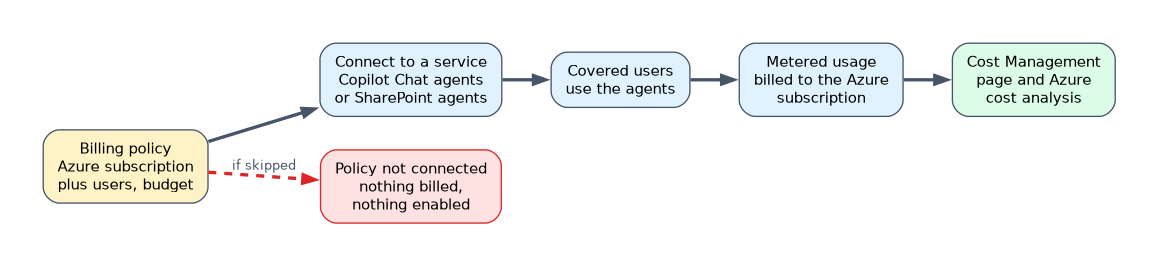 A billing policy is a unique billing identifier. It combines an Azure subscription and a set of users. Two steps set it up:
- Add a billing policy. Choose the Azure subscription and the users it covers, and optionally add a budget.
- Connect the policy to a Copilot service, such as Copilot Chat agents or SharePoint agents.
Creating the policy alone does not finish the setup. Until it is connected to a service, nothing is billed and nothing is enabled.
The place to start is Microsoft 365 admin center > Copilot > Settings > User access > Copilot pay-as-you-go billing, which opens the Billing & usage page. There, the Pay-as-you-go services tab lets you pick a service and configure its policy.
Managing policies
| Task | What happens |
|---|---|
| Add a budget | Set a spending limit and email notifications at percentage milestones |
| Connect a policy | Users covered by the policy get access to the service |
| Disconnect a policy | Users covered by it lose access to the metered agents |
| Delete a policy | Removes the billing set up and disconnects any connected services |
| Change scope | Disconnect an "all users" policy before connecting a user specific one |
Policies can allocate cost to departments, so each team's usage lands on its own Azure subscription. Connections happen one at a time.
Monitoring cost
Use the Cost Management page in the Microsoft 365 admin center for each pay as you go service. The Azure portal gives a deeper cost breakdown and analysis through Microsoft Cost Management.
The Global Administrator, Billing Administrator and AI Administrator roles can view and manage pay as you go. Global Reader gets read only access. By default pay as you go is disabled, and a Global Administrator or subscription owner can enable it.
A worked example
The marketing team wants to try Copilot Chat agents but has no licenses. The admin opens Copilot pay-as-you-go billing, adds a billing policy named Marketing that uses the marketing Azure subscription, sets a budget with an email warning at a chosen percentage, and connects the policy to the service. A month later the admin checks the Cost Management page. Usage is lower than expected, so marketing stays on pay as you go. Sales, with heavy daily use, receives monthly licenses instead.
How the exam asks about this
- "Where do you assign a Microsoft 365 Copilot license to a group?" Microsoft 365 admin center > Billing > Licenses.
- "A billing policy exists but users cannot use the service." The policy has not been connected to a Copilot service.
- "Warn the team when spending reaches a threshold." Add a budget with notifications to the billing policy.
What to remember for the exam
- Copilot licenses are assigned in the Microsoft 365 admin center under Billing > Licenses.
- A license is assigned to a user or group, never to guests from other tenants.
- A billing policy links users to an Azure subscription.
- A policy must be connected to a Copilot service to work.
- Cost Management in the Microsoft 365 admin center shows pay as you go usage and cost.
A billing policy without a connected service enables nothing. Disconnecting one removes access for its users.
Common mistakes
Forgetting the base license. The Copilot add-on sits on top of an eligible Microsoft 365 plan. Users without one cannot receive it.
Believing a created policy is active. Creating it only defines the Azure subscription and users. The connection to a service completes the setup.
Expecting an instant result. After license assignment, Copilot can take up to 24 hours to show in some apps.
Check yourself
Where do you assign Microsoft 365 Copilot licenses?
In the Microsoft 365 admin center under Billing > Licenses, then choose the Copilot product and assign users or groups.
What does a pay as you go billing policy contain?
An Azure subscription and a set of users, with an optional budget. It must be connected to a Copilot service to take effect.
What happens to users when you disconnect a billing policy?
They lose access to the metered agents in that Copilot service.
Topic 3 of 5 in Basic Administrative Tasks for Copilot and Agents
Test yourself on Basic Administrative Tasks for Copilot and Agents
The full Microsoft AB-900 question bank has 499 questions, with timed practice exams and an explanation for every answer.
This study guide is independent and is not affiliated with, endorsed by, or sponsored by Microsoft. Vendor names, certification names and exam codes are trademarks of their respective owners and are used for identification only.