Juniper Mist Configuration Basics · Topic 2 of 4
Factory Defaults, Claiming and Auto Provisioning
Learn Mist onboarding for the JN0-253: factory default needs, ports to open, claim and activation codes, claiming APs and switches, and auto provisioning.
- 6 min
- Includes a diagram
- Factory default AP: DHCP on the untagged VLAN, DNS lookup, HTTPS to the cloud; solid green LED means connected.
- AP firewall needs: outbound TCP 443, DNS, DHCP; UDP 443 and TCP 80 recommended, not required.
- EX switches and SRX also need outbound TCP 2200 to oc-term.mistsys.net.
What it is
A Mist device leaves the factory cloud ready. It has no site configuration of its own; out of the box it only knows how to get an address, find the Mist cloud and connect. The rest comes from the cloud once it joins your organization.
Claiming puts a device into your organization's inventory. Onboarding is the whole path from power on to a device running its site configuration. Auto provisioning lets the cloud assign claimed APs to sites, device profiles and names by rules, so installers do not have to.
How it works
Factory default behavior and network prerequisites
On power up, a Mist AP requests an IP address by DHCP on the untagged VLAN. It resolves the Mist cloud host names by DNS and opens an HTTPS session to the cloud. When the AP is connected to the cloud, its status LED is solid green.
| AP requirement | Detail |
|---|---|
| IP address | DHCP on the untagged (native) VLAN; static IP is possible after onboarding |
| DNS | Must resolve the cloud host names; the DNS server does not need to be public |
| TCP 443 outbound | Required, for example to ep-terminator.mistsys.net on Global 01 |
| UDP 443 and TCP 80 outbound | Recommended but not required |
| NTP | By default pool.ntp.org or DHCP option 42; UDP 123 may need to be allowed |
| Power | PoE class depends on the AP model; check its hardware guide |
Junos devices use different cloud hosts. For Global 01, an EX switch needs outbound TCP 443 to redirect.juniper.net, jma-terminator.mistsys.net and ztp.mist.com, and TCP 2200 to oc-term.mistsys.net. SRX firewalls also use TCP 2200 to oc-term.mistsys.net.
If an AP powers up but never shows solid green, check the basics in order: DHCP on the untagged VLAN, DNS resolution, then outbound TCP 443 through the firewall.
Claim codes and activation codes
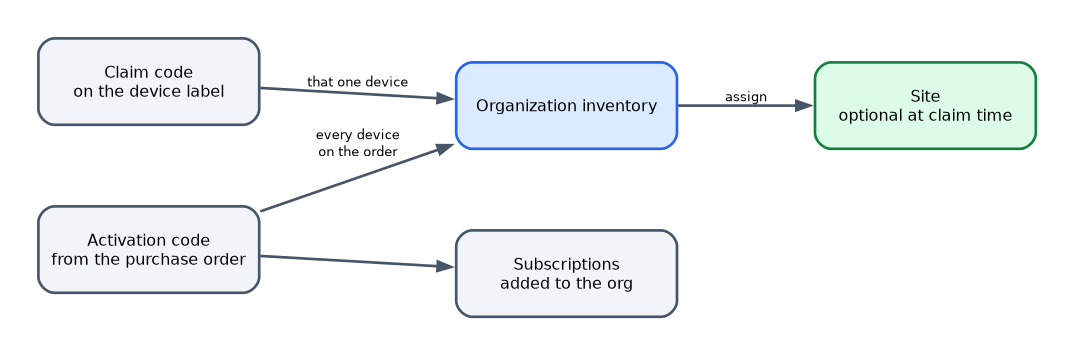
| Code | Where it comes from | What it claims |
|---|---|---|
| Claim code | Printed with a QR code on the device itself | That one device |
| Activation code | Sent with the purchase order | Every device on the order, and its subscriptions |
Both codes are entered in the same claim dialog. An activation code can also be applied on the Subscriptions page, which adds the order's devices and subscriptions to the org.
Claiming APs in the portal
- Go to Organization > Admin > Inventory (older pages show Organization > Inventory), select Access Points and click Claim APs.
- Enter the claim code or activation code.
- Optionally pick a site; the default is the primary site. Clear Assign claimed APs to site to claim the AP into the inventory as unassigned.
- Optionally select Generate names for APs, with format:, which works only when assigning to a site.
- Optionally select Assign claimed APs to device profile and pick a profile.
- Click Claim.
Claiming with the Mist AI mobile app
The Mist AI app claims one AP at a time. Select the organization and site, tap + on the Access Points tab and point the camera at the QR code on the AP. The app claims the AP and adds it to that site in one step.
Claiming and adopting switches
On the Inventory page, select Switches and click Claim Switches, then enter the claim or activation code. The claim screen can also assign a site, generate names, apply automatic Junos upgrades, let Mist manage the configuration and set the root password.
Devices that have no Mist claim code are adopted instead. That covers older switches built before claim codes and virtual devices such as vJunos-switch.
Auto provisioning
Auto provisioning is configured on Organization > Admin > Settings with Configure Auto-Provisioning. It works on APs (and Cellular Edge devices for site assignment) and can assign three things:
| Assignment | Driven by |
|---|---|
| Site | AP Name, LLDP System Name, DNS Suffix, Subnet or Model |
| Device profile | Model, device name, DNS suffix, LLDP system name or subnet |
| AP name | Generated from the LLDP port or the MAC address |
For site assignment, click Site Assignment, select Enabled, choose the AP tab and click Add Rule. For name-based sources, transformation options cut the string down to the site name and a Preview box shows the result. For Subnet or Model, a table maps each subnet or model to a site.
| Rule behavior | Detail |
|---|---|
| Which devices | Connected devices claimed or adopted into the org that are not yet assigned to a site |
| Order | Rules run top down; the first rule that finds a site wins |
| No match | The device stays unassigned and must be assigned by hand |
| Existing site | A device that already has a site is not moved |
| Match target | The derived value must exactly match an existing site name |
| Catch all | A subnet rule for 0.0.0.0/0 sends every AP to one site |
An AP Name rule reads names an installer sets through the installer API. If an AP was already named in the portal, rename it through the API for the AP Name rule to work.
Common mistakes
Expecting a tagged management VLAN out of the box. A factory default AP looks for DHCP on the untagged VLAN. A switch port that offers only tagged VLANs leaves it without an address.
Opening inbound firewall ports. The device connects out to the cloud. You allow outbound TCP 443, plus TCP 2200 for Junos devices, not inbound connections.
Using a claim code for a whole shipment. A claim code covers one device. For many devices, use the activation code from the order.
Expecting auto provisioning to move assigned devices. Rules apply only to unassigned devices.
What to remember for the exam
- Factory default AP: DHCP on the untagged VLAN, DNS lookup, HTTPS to the cloud; solid green LED means connected.
- AP firewall needs: outbound TCP 443, DNS, DHCP; UDP 443 and TCP 80 recommended, not required.
- EX switches and SRX also need outbound TCP 2200 to oc-term.mistsys.net.
- Claim code: one device, printed on it with a QR code. Activation code: the whole order.
- Claim APs: Organization > Admin > Inventory > Access Points > Claim APs; optional site, names and device profile.
- The Mist AI app claims one AP by QR code straight into a site.
- Devices without claim codes, such as older or virtual switches, are adopted.
- Auto provisioning is on Organization > Admin > Settings; site sources are AP Name, LLDP System Name, DNS Suffix, Subnet and Model; first match wins; only unassigned devices.
Check yourself
A new AP gets no IP address on a trunk port that carries only tagged VLANs. Why?
A factory default AP requests DHCP on the untagged VLAN, so the port needs a native VLAN with a DHCP server.
You bought 40 APs on one order. What is the fastest way to claim them all?
Enter the activation code from the purchase order, which claims every device on the order at once.
An auto provisioning subnet rule matches an AP that is already assigned to Site A. What happens?
Nothing; auto provisioning applies only to devices that are not yet assigned to a site.
Topic 2 of 4 in Juniper Mist Configuration Basics
Test yourself on Juniper Mist Configuration Basics
The full Juniper JNCIA-MistAI JN0-253 question bank has 668 questions, with timed practice exams and an explanation for every answer.
This study guide is independent and is not affiliated with, endorsed by, or sponsored by Juniper. Vendor names, certification names and exam codes are trademarks of their respective owners and are used for identification only.