Software Troubleshooting · Topic 1 of 5
Windows Boot and Crash Problems
Troubleshoot Windows that will not start, shows a blue screen, restarts on its own or has a damaged profile, using recovery tools, safe mode and restore.
- 4 min
- Includes a diagram
- A BSOD points to drivers, memory, storage or corrupt system files.
- WinRE provides Startup Repair, System Restore, uninstall updates, Command Prompt and Reset this PC.
- System Restore does not remove personal files.
What it is
Boot and crash problems stop Windows from starting or make it stop suddenly. The skill is to work in order: identify the symptom, rule out the simple causes, and then use the least destructive recovery tool that fits. The exam gives a symptom and asks for the next step or the best tool.
How it works
Common symptoms and likely causes
| Symptom | Likely causes |
|---|---|
| Blue screen of death (BSOD), also called a stop error | Bad driver, failing hardware or memory, corrupt system files |
| Failure to boot or no operating system (OS) found | Wrong boot order, damaged boot files, failed drive, disconnected drive |
| Spontaneous restarts | Overheating, failing power supply or memory, a driver fault |
| Black screen | Display or graphics problem, or a failed shell or driver |
| Missing or corrupt system files | Failed update, malware, disk errors |
| Boot loops after an update | Faulty update or driver |
| Profile will not load, or a temporary profile is used | Corrupted user profile |
A technician should first note any error text or code, ask what changed recently, and check hardware basics such as cables, removable media and the boot order.
The recovery toolbox
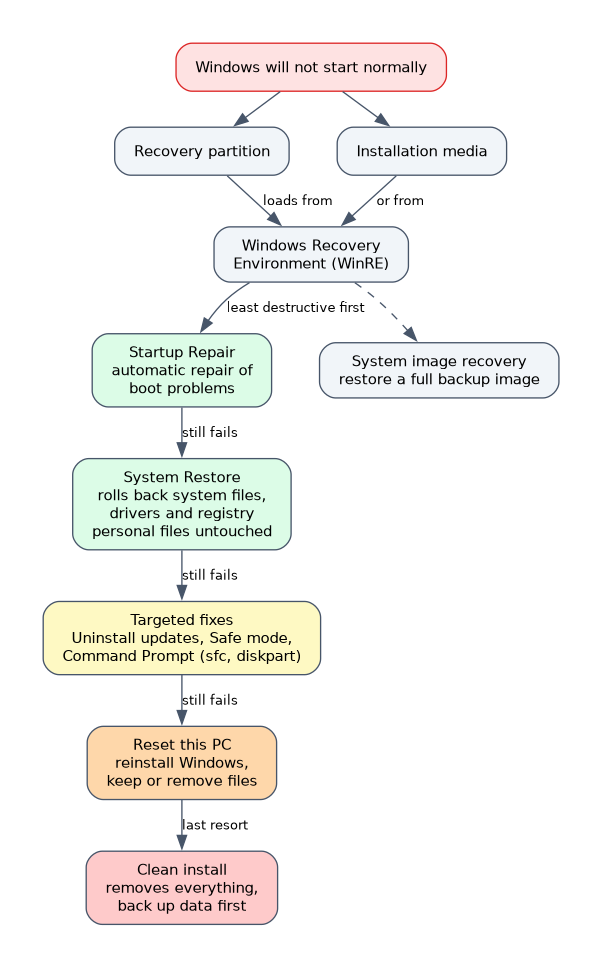 Windows Recovery Environment (WinRE) loads from a recovery partition or from installation media when Windows cannot start normally. It offers these options.
| Tool | Use it for |
|---|---|
| Startup Repair | Automatic repair of problems that stop Windows booting |
| System Restore | Roll back system files, drivers and registry to a restore point, without touching personal files |
| Uninstall updates | Remove a recent update that broke startup |
| Safe mode | Start with minimal drivers, to remove software or drivers that cause the fault |
| Command Prompt | Run tools such as sfc and diskpart |
| Reset this PC (personal computer) | Reinstall Windows, with a choice to keep personal files or remove everything |
| System image recovery | Restore a full backup image |
Safe mode is also reached from the advanced startup options or from msconfig. Safe mode with networking adds network drivers. In safe mode the screen resolution is low and some features are missing, which is normal.
Working through a BSOD
Read the stop code and any named file. Boot into safe mode, remove the last driver or update installed, and run sfc /scannow and chkdsk for file and disk errors.
Check memory with the Windows Memory Diagnostic and watch temperatures if the system restarts under load. If the cause is a failing drive or memory, replace the hardware.
User profile problems
If a user sees a temporary profile, a message that they cannot sign in, or missing desktop items, the profile may be corrupted. The usual fix is to create a new user profile, then copy the data across, rather than repairing the old one.
Reset versus reinstall
Reset this PC is faster and keeps the user's choice about files. A clean install is stronger but removes everything, so back up data first. Choose the more drastic step only when lesser options fail.
Work from least to most destructive. Restart, Startup Repair, System Restore, safe mode fixes, and only then Reset this PC or a clean install.
What to remember for the exam
- A BSOD points to drivers, memory, storage or corrupt system files.
- WinRE provides Startup Repair, System Restore, uninstall updates, Command Prompt and Reset this PC.
- System Restore does not remove personal files.
- Safe mode loads minimal drivers and helps remove bad drivers and software.
sfc /scannowrepairs system files andchkdskchecks the drive.- Boot failures: check the boot order and drive connection first.
- Spontaneous restarts can come from overheating or a failing power supply.
- A corrupted profile is fixed by creating a new profile.
- Back up data before a clean install.
Common mistakes
Reinstalling first. A reset or reinstall wipes more than needed. Start with Startup Repair or System Restore.
Ignoring hardware. Random crashes with a healthy OS often point to memory, heat or a failing drive.
Forgetting a backup. Some fixes remove data, so save the user's files first when possible.
Expecting System Restore to recover documents. It restores system state, not personal files.
Check yourself
Which tool rolls back drivers and system settings without touching personal files?
System Restore.
What is the usual fix for a corrupted user profile?
Create a new profile and copy the user's data into it.
Why start Windows in safe mode to fix a driver crash?
Safe mode loads minimal drivers, so the faulty driver does not load and can be removed.
Topic 1 of 5 in Software Troubleshooting
Test yourself on Software Troubleshooting
The full CompTIA A+ 220-1202 question bank has 835 questions, with timed practice exams and an explanation for every answer.
This study guide is independent and is not affiliated with, endorsed by, or sponsored by CompTIA. Vendor names, certification names and exam codes are trademarks of their respective owners and are used for identification only.