Software Troubleshooting · Topic 5 of 5
PC Security Problems
Diagnose PC security symptoms such as pop ups, browser redirection, certificate warnings, fake antivirus alerts, hijacked accounts and encrypted files.
- 4 min
- Includes a diagram
- Pop ups and notifications suggest adware or a malicious extension.
- Redirection points to browser settings, extensions, the hosts file or DNS.
- Check the date and time when a certificate warning appears.
What it is
Malware and attacks leave visible clues on a computer. A technician reads the symptoms, matches them to a likely cause, and picks the right response. The security removal process (quarantine, remediate, educate) from the Security chapter applies to most of these cases.
How it works
Symptoms and what they suggest
| Symptom | Likely cause |
|---|---|
| Pop ups and unwanted notifications | Adware, a malicious extension or notification permission abuse |
| Browser redirection to unexpected sites | Hijacked browser settings, malicious extension, or altered hosts file or Domain Name System (DNS) |
| Fake antivirus alert demanding payment | Rogue (fake) antivirus, a form of scareware |
| Invalid certificate warnings | On path attack, expired or wrong certificate, or wrong system date |
| Files renamed, missing or inaccessible | Ransomware, malware, or altered permissions |
| Unusual central processing unit (CPU), disk or network use | Cryptominer, botnet client or other hidden malware |
| Slow system and crashes | Malware, or an unrelated fault |
| Antivirus disabled or cannot update | Malware that attacks security tools |
| Spam sent from your account | Compromised email account or malware that sends mail |
| Contacts receive odd messages from you | Hijacked email or social media account |
| Unexpected sign in alerts or lockouts | Credential stuffing or someone guessing passwords |
| Desktop alerts that cannot be closed | Scareware or a malicious page |
The word scareware describes software that uses fear, such as a false virus warning, to push the user into paying or installing something harmful.
Handling a browser that redirects
- Close the browser and remove unknown extensions.
- Reset the browser to defaults, or clear cache, cookies and history.
- Check the proxy settings and the DNS servers on the adapter.
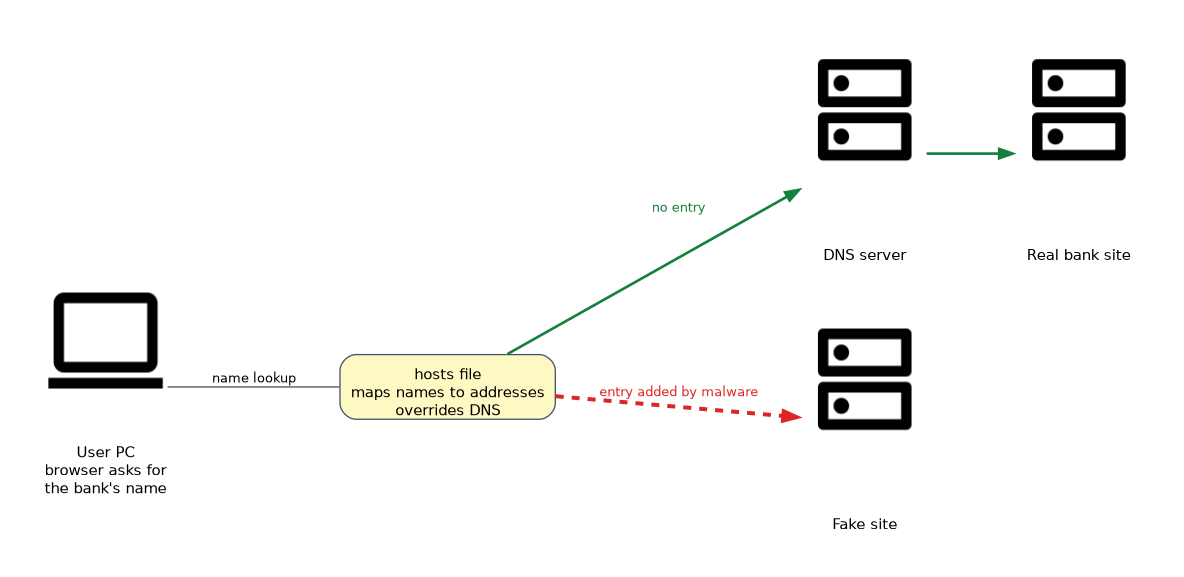
- Check the hosts file at
C:\Windows\System32\drivers\etc\hostsfor added entries that send sites elsewhere. - Run an antimalware scan.
The hosts file maps names to addresses and overrides DNS, so malware can use it to send a bank's name to a fake site.
Certificate warnings
First check the date and time on the computer, because a wrong clock makes valid certificates look expired.
If the clock is right, the warning may point to an on path attack on an unsafe network. Do not continue to a site that asks for a login. Test on another network or device.
Ransomware and renamed files
If files are encrypted or renamed and a ransom note appears, isolate the computer at once by disconnecting the network, avoid paying, and restore from a clean backup after cleaning the system. Disconnecting limits spread to shared drives.
Compromised accounts
If an email or social account is sending spam or shows unknown sign ins, change the password from a clean device, enable multifactor authentication (MFA), sign out of all sessions, review forwarding rules and recovery options, and warn contacts. Check the personal computer (PC) for a keylogger before reusing the password.
Fake antivirus
Do not click the pop up or call the number. Close the browser using Task Manager if needed, then boot into safe mode and scan with a legitimate tool. Uninstall any program that the pop up installed.
Using the full removal process
For infected computers, apply the small office or home office (SOHO) malware steps: verify, quarantine, disable System Restore, remediate, schedule scans, enable System Restore and educate the user.
Never call the number on a pop up or let a stranger take remote control of the PC. Both are common routes to fraud.
What to remember for the exam
- Pop ups and notifications suggest adware or a malicious extension.
- Redirection points to browser settings, extensions, the hosts file or DNS.
- Check the date and time when a certificate warning appears.
- Fake antivirus alerts are scareware. Do not click them.
- Ransomware requires isolation and a restore from backup.
- Spam from your account means a compromised account. Change the password and enable MFA.
- A disabled or non updating antivirus is a sign of malware.
- Use safe mode and an updated scanner to remove infections.
- Follow the full malware removal process.
Common mistakes
Clicking close on the fake alert. The button may trigger a download.
Resetting the password from the infected PC. A keylogger could capture the new one.
Paying a ransom. There is no guarantee, and it supports further attacks.
Treating every certificate warning as an attack. A wrong system clock is a common harmless cause.
Check yourself
Which file can malware edit to redirect a website name to a fake address?
The hosts file.
What should you check first for a certificate warning that appears on many sites?
The computer's date and time.
What should be done first when ransomware is found?
Disconnect the computer from the network to stop it spreading.
Topic 5 of 5 in Software Troubleshooting
Test yourself on Software Troubleshooting
The full CompTIA A+ 220-1202 question bank has 835 questions, with timed practice exams and an explanation for every answer.
This study guide is independent and is not affiliated with, endorsed by, or sponsored by CompTIA. Vendor names, certification names and exam codes are trademarks of their respective owners and are used for identification only.