Security · Topic 8 of 13
SOHO Malware Removal Procedure
Follow the ten step best practice for SOHO malware removal: verify, quarantine, disable System Restore, remediate, reinstall if needed and educate.
- 5 min
- Includes a diagram
- Learn the ten steps in order.
- Verify the symptoms before acting.
- Quarantine by disconnecting from the network and removable media.
What it is
CompTIA defines a fixed order of steps for removing malware on a small office or home office (SOHO) computer. The order matters because early steps protect other devices and prevent the malware from hiding in restore data. The exam usually asks which step comes next or which step a described action belongs to.
How it works
The ten steps
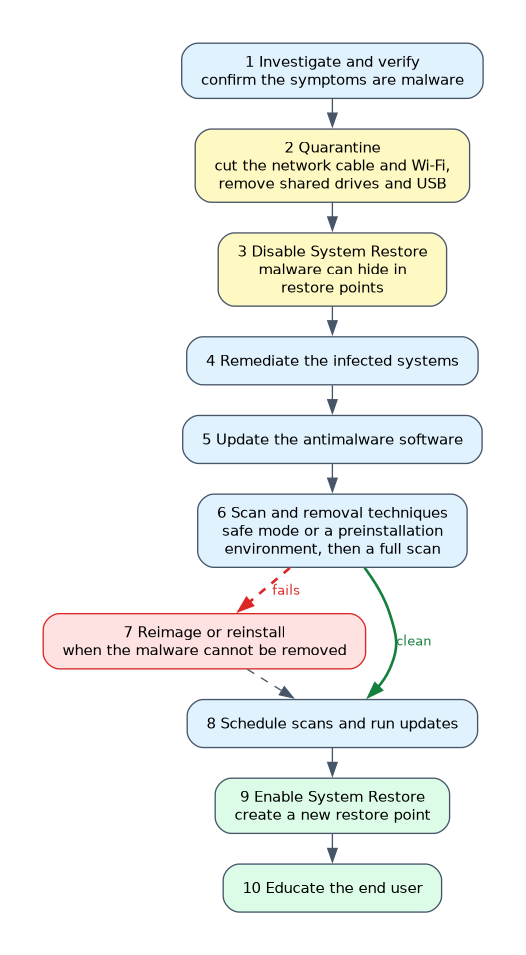
| Step | Action |
|---|---|
| 1 | Investigate and verify malware symptoms |
| 2 | Quarantine the infected systems |
| 3 | Disable System Restore in Windows (and delete old restore points) |
| 4 | Remediate the infected systems |
| 5 | Update the antimalware software |
| 6 | Use scanning and removal techniques, such as safe mode or a preinstallation environment |
| 7 | Reimage or reinstall the system if the malware cannot be removed |
| 8 | Schedule scans and run updates |
| 9 | Enable System Restore and create a restore point in Windows |
| 10 | Educate the end user |
Step 1: investigate and verify
Confirm that the symptoms are really malware. Ask what the user saw, when it started and what they did, and look for pop ups, redirects, slow performance, disabled security tools or unknown programs. Some faults look like malware but are not, so verifying avoids unnecessary work.
Step 2: quarantine
Isolate the infected computer so the malware cannot spread or send data out. Disconnect the network cable, turn off Wi-Fi and remove shared drives or Universal Serial Bus (USB) storage. Keep the machine away from other devices, and treat removable media that was attached as possibly infected.
Step 3: disable System Restore
System Restore saves copies of system files, and malware can hide inside those restore points. Antimalware tools usually cannot clean the protected restore data. Turning the feature off, which deletes the old restore points, prevents a cleaned system from being reinfected by a restore.
Step 4: remediate
Remediation is the work of cleaning the infected system. Steps 5 and 6 are the two parts of it: first bring the tools up to date, then use the right removal technique.
Step 5: update the antimalware software
Update the antimalware software first, so it knows the newest threats. An out of date scanner misses newer variants.
Step 6: scan and removal techniques
Use the technique that fits the case.
- Safe mode. Starts with minimal drivers and services, so most malware is not running.
- Preinstallation environment. Boot from external media into a clean environment and scan the offline operating system (OS).
- Run a full scan. Quarantine or delete what is found, and re scan until clean.
Step 7: reimage or reinstall
If the malware cannot be removed, back up the user's data and reimage or reinstall the OS. This is the last resort when cleaning fails.
Step 8: schedule scans and run updates
Set up regular scans and keep the OS, applications and definitions updated. This closes the hole that let the malware in and catches any leftovers.
Step 9: enable System Restore
After the system is clean, turn System Restore on again and create a fresh restore point. This gives a known good state to return to if a later problem occurs.
Step 10: educate the end user
Explain how the infection happened and how to avoid it. Cover safe browsing, careful handling of attachments and links, avoiding untrusted downloads and reporting odd behaviour quickly. Training is the step that reduces repeat incidents.
A short example
A user reports pop ups and a slow browser. You confirm the symptoms, unplug the network cable, and turn off System Restore. You then update the antimalware tool, boot into safe mode, and run a full scan that finds and removes a hidden program.
After a restart you schedule weekly scans, apply pending updates, turn System Restore back on and create a restore point. Finally, you explain to the user that the program came with a free download.
A common trap is to scan first. The order puts quarantine and disabling System Restore before remediation, and enabling System Restore only after the system is clean.
What to remember for the exam
- Learn the ten steps in order.
- Verify the symptoms before acting.
- Quarantine by disconnecting from the network and removable media.
- Disable System Restore before cleaning, because malware can hide in restore points.
- Remediation includes updating the antimalware tools (step 5) and then scanning (step 6).
- Safe mode and a preinstallation environment are removal techniques.
- Reimage or reinstall only when the malware cannot be removed (step 7).
- Schedule scans and updates after remediation.
- Enable System Restore and make a new restore point only after the system is clean.
- Educate the user as the last step.
Common mistakes
Scanning before quarantining. The malware may spread while you work.
Forgetting to update definitions. An out of date scanner misses newer variants.
Leaving System Restore off. Turn it back on and create a restore point once the system is clean.
Skipping user education. Without it, the same infection often returns.
Check yourself
Which step comes right after quarantining the infected system?
Disable System Restore in Windows.
Why is System Restore disabled before removal?
Malware can hide in restore points, and cleaning tools cannot reliably clean them.
What is the last step of the procedure?
Educate the end user.
Topic 8 of 13 in Security
Test yourself on Security
The full CompTIA A+ 220-1202 question bank has 835 questions, with timed practice exams and an explanation for every answer.
This study guide is independent and is not affiliated with, endorsed by, or sponsored by CompTIA. Vendor names, certification names and exam codes are trademarks of their respective owners and are used for identification only.