Respond to Security Incidents · Topic 1 of 5
Responding in Defender XDR, Office 365 and Purview
SC-200 incident response: Defender XDR incidents, Defender for Office 365 Threat Explorer and ZAP, Purview alerts, Defender for Cloud and Cloud Apps.
- 6 min
- Includes a diagram
- Start from the incident and its attack story.
- Threat Explorer shows about 30 days of data. For older mail use a Purview content search and purge.
- ZAP removes later detected malicious messages after delivery. Quarantine holds blocked messages.
What it is
Microsoft Defender XDR gathers alerts from many products into incidents. Responding well means working from the incident, then using the tools of the product that detected the threat. This page covers email threats in Defender for Office 365, compromised entities flagged by Microsoft Purview, alerts from Defender for Cloud workload protections, and risks found by Defender for Cloud Apps.
How it works
Working from the incident
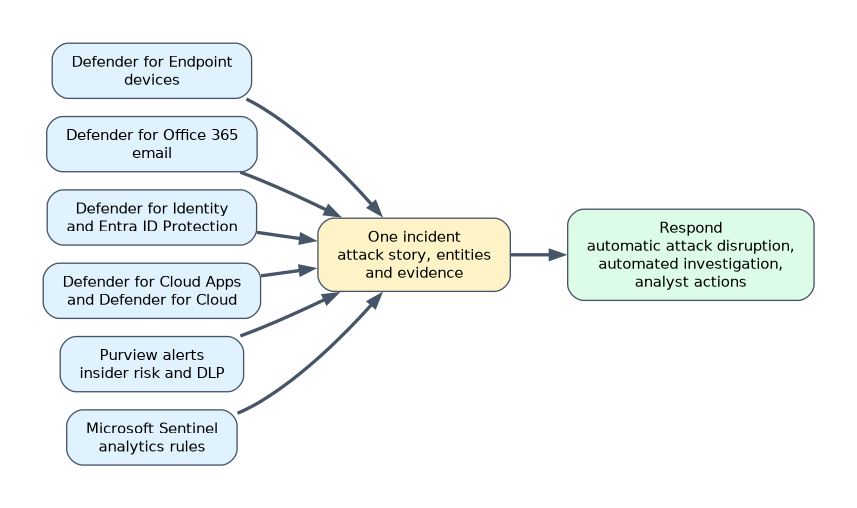 The Incidents queue lists incidents with their severity, status, assigned owner and the services involved. Opening one shows the attack story: the alerts in time order, the affected devices, users, mailboxes and apps, and the evidence. Filter the queue by severity, service source or status, then:
- Review the summary and the entities involved.
- Look at each alert and its evidence.
- Take response actions on the entities.
- Record comments, classify the incident and resolve it.
Defender for Office 365
Defender for Office 365 protects email and collaboration. For responding to threats you use:
| Tool | What it does |
|---|---|
| Threat Explorer | Searches email and file events, with views for malware, phishing and all email, so you can find who received a message and what happened to it. It keeps about 30 days of data |
| Automated investigation and response | Investigates an email alert and proposes remediation, such as soft deleting messages or blocking a sender |
| Zero hour auto purge (ZAP) | Removes a message that is later found to be malicious from mailboxes after delivery |
| Quarantine | Holds messages that were blocked as malicious until an administrator reviews or releases them |
| Submissions | Lets you and users report messages for analysis |
| Remediation | Soft delete, hard delete, or move to Junk, applied to messages from Explorer or an investigation |
A typical response to a phishing campaign: find the message in Threat Explorer, see all recipients and who clicked, remove it from mailboxes with a remediation action, block the sender or URL, and check whether any recipient's account was compromised.
If a message was delivered more than 30 days ago, Threat Explorer no longer shows it. A content search in Microsoft Purview, which is part of eDiscovery, can still find the message in mailboxes and purge it, so that is the approach for old messages.
Compromised entities identified by Microsoft Purview
Purview solutions raise alerts about risky data activity, and these alerts appear in Defender XDR incidents so the SOC sees them with everything else.
- Insider risk management flags risky user activity, such as downloading many files before leaving the company.
- Data loss prevention alerts report sensitive data being shared against policy.
- Communication compliance flags inappropriate or risky messages.
- Data Security Investigations helps investigate the scope of a data breach.
When investigating, look at the user's activity timeline, the sensitive files involved and the risk score. Responses can include restricting the user, removing sharing, and involving HR or legal teams, since these cases often have privacy and legal implications.
Defender for Cloud workload protections
Microsoft Defender for Cloud protects workloads such as servers, storage, databases and containers. Its alerts also flow into the incident queue.
- Open the alert to see the resource, the kill chain stage and recommended steps.
- For servers, use the linked Defender for Endpoint data to see the process tree.
- Respond by isolating a machine, revoking a storage account key or SAS token, restricting network access, or applying the recommendations that Defender for Cloud gives.
- Separate security risks that are found before an attack, such as an exposed management port, from alerts about an attack in progress. The first are recommendations, and the second are alerts you investigate.
Defender for Cloud Apps
Defender for Cloud Apps watches the activity in cloud applications and the apps users have authorised.
- The activity log shows what users did in each connected app.
- The investigation priority score on a user page ranks users by how suspicious their activity is, so you know whom to look at first.
- Alerts come from policies, for example mass download, impossible travel or an app with risky permissions.
- Governance actions include suspending the user, requiring the user to sign in again, quarantining a file and revoking an app's permissions. The governance log records these actions.
- OAuth apps: review the permissions of apps that users authorised, and revoke or ban risky ones.
Choosing the response
| The situation | Response |
|---|---|
| A phishing email reached 300 mailboxes | Threat Explorer, then a remediation action to remove the messages |
| A malicious message was delivered 45 days ago | A content search in Purview, then purge |
| A departing employee downloaded thousands of files | Review the insider risk alert and the user's activity, involve HR |
| Suspicious activity on a user in a SaaS app | Review the user page and take a governance action |
| An alert on a storage account from Defender for Cloud | Check the resource, revoke keys, restrict access |
A worked scenario
A SOC gets an incident that groups a phishing email, a sign in from an unusual place and a risky OAuth app. The analyst opens the attack story, finds the message in Threat Explorer, sees that 12 users clicked, and removes the message from all mailboxes. Defender for Cloud Apps shows that one user authorised an app with broad mail permissions, so the analyst revokes it and signs the user out. The user's account is checked in the identity tools. Because the first copy of the phish was delivered 45 days ago to some mailboxes, the analyst runs a Purview content search and purges those too.
What to remember for the exam
- Start from the incident and its attack story.
- Threat Explorer shows about 30 days of data. For older mail use a Purview content search and purge.
- ZAP removes later detected malicious messages after delivery. Quarantine holds blocked messages.
- Purview insider risk and DLP alerts surface in Defender XDR.
- The investigation priority score ranks users in Defender for Cloud Apps. Governance actions include suspending a user and revoking an app.
When a question mentions an email delivered more than a month ago, think content search and purge, not Threat Explorer.
How the exam asks about this
- "Where are messages blocked as malicious held until reviewed?" Quarantine.
- "Remove a phishing message delivered 45 days ago from 120 mailboxes." A Purview content search with purge.
- "Rank users by suspicious activity in Defender for Cloud Apps." The investigation priority score.
- "Which feature removes a message after delivery once it is found to be malicious?" Zero hour auto purge.
Common mistakes
Handling alerts one by one. The incident already correlates them.
Searching Threat Explorer for old messages. Its data is limited to about 30 days.
Ignoring Purview alerts. They are part of the same incident story.
Treating recommendations as alerts. One is a weakness, the other an attack.
Check yourself
How far back does Threat Explorer search?
About 30 days.
What does ZAP do?
It removes malicious messages from mailboxes after delivery, once they are identified as malicious.
What does the investigation priority score in Defender for Cloud Apps show?
How suspicious a user's activity is, so analysts can rank users to investigate.
Topic 1 of 5 in Respond to Security Incidents
Test yourself on Respond to Security Incidents
The full Microsoft SC-200 question bank has 650 questions, with timed practice exams and an explanation for every answer.
This study guide is independent and is not affiliated with, endorsed by, or sponsored by Microsoft. Vendor names, certification names and exam codes are trademarks of their respective owners and are used for identification only.