Prepare infrastructure for devices · Topic 1 of 7
Device Join Types and Registration in Microsoft Entra ID
MD-102 device identity: choose between Microsoft Entra registered, joined and hybrid joined devices, and set the device settings that control who can join.
- 5 min
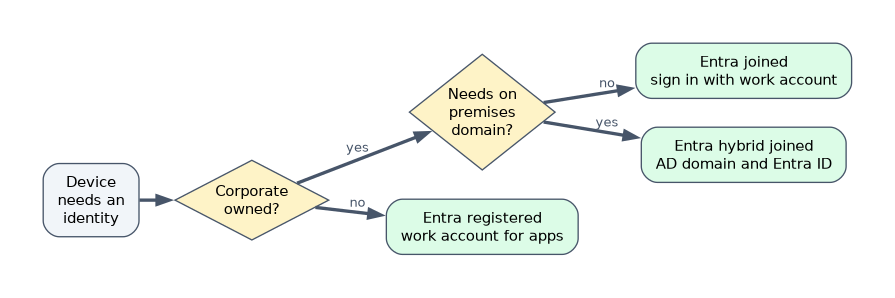
- Includes a diagram
- Registered means personal, with a local sign in. Joined means corporate, with a work account sign in. Hybrid means joined to Active Directory and registered in Entra ID.
- Entra join and hybrid join are for corporate Windows devices. Hybrid join is Windows only.
- Hybrid join needs Entra Connect, and Autopilot hybrid join needs the Intune Connector for Active Directory.
What it is
Every managed device needs an identity in Microsoft Entra ID. How the device gets that identity depends on who owns it and whether it also belongs to an on premises Active Directory domain. The three options are Microsoft Entra registered, Microsoft Entra joined and Microsoft Entra hybrid joined. Choosing the right one is the first design decision for any device.
How it works
The three identity options
| Option | Typical owner | Sign in to the device with | Platforms |
|---|---|---|---|
| Microsoft Entra registered | Personal (BYOD) and some mobile devices | A local or personal account. The work account is used for apps and resources | Windows 10 and 11, iOS, iPadOS, macOS, Android, Linux |
| Microsoft Entra joined | Corporate | A work account from Entra ID | Windows 10 and 11, including Cloud PCs |
| Microsoft Entra hybrid joined | Corporate, with an on premises domain | An Active Directory domain account | Windows only |
Registration gives a light identity so a person can reach work resources and, optionally, enroll for management. It does not change how the person signs in to the device. Join makes the work account the sign in identity and gives the organization control of the device. Hybrid join applies to devices that are already domain joined to on premises Active Directory and are also registered in Entra ID, which requires Microsoft Entra Connect to sync the computer objects.
Choosing a join type
| Situation | Choice |
|---|---|
| Personal phone or laptop that accesses work email | Register |
| New corporate laptop, no domain needed, cloud apps | Entra join |
| Corporate laptop that needs on premises Kerberos or NTLM resources and Group Policy | Hybrid join |
| Cloud native strategy, remote workers | Entra join, because it needs no line of sight to a domain controller |
Microsoft recommends Entra join for new corporate Windows devices, because it is simpler and works from anywhere. Choose hybrid join when apps or services still depend on the domain. Hybrid join needs devices to reach a domain controller (on the network or by VPN) at least for the initial join.
Joining and registering devices
- Join during setup (OOBE): the user signs in with a work account during the out of box experience, and the device joins Entra ID. If automatic MDM enrollment is on, the device also enrolls in Intune.
- Join from Settings: a user can go to Settings, Accounts, Access work or school, and choose Join this device to Microsoft Entra ID.
- Windows Autopilot: joins devices to Entra ID (or hybrid joins) as part of provisioning.
- Bulk enrollment: a provisioning package built with Windows Configuration Designer can join many devices without reimaging.
- Register: the user adds a work or school account from Settings, or signs in to an app and agrees to register the device.
Device settings in Microsoft Entra ID
In the Entra admin center, Devices then Device settings controls joining.
| Setting | Effect |
|---|---|
| Users may join devices to Microsoft Entra | All, Selected users or groups, or None |
| Maximum number of devices per user | Limits how many devices one user can register or join |
| Additional local administrators on Microsoft Entra joined devices | Adds roles or users to the local Administrators group |
| Enable Microsoft Entra Local Administrator Password Solution (LAPS) | Lets Entra store LAPS passwords, covered later |
| Restrict non admin users from recovering BitLocker keys | Hides keys from standard users |
To require multifactor authentication when a device registers or joins, use a Conditional Access policy that targets the Register or join devices user action, not the older device setting.
Hybrid join prerequisites
Hybrid join needs Microsoft Entra Connect with device options enabled, a service connection point in Active Directory that points to the tenant, and devices that can reach the domain controller during join. Windows Autopilot hybrid join also needs the Intune Connector for Active Directory, which creates the computer object in a chosen organizational unit.
A worked scenario
A company ships new laptops to remote staff and has no VPN. The engineer chooses Entra join with Autopilot, so users sign in with their work account at first start. Contractors use their own laptops, so those devices are only registered, which lets them open work apps without giving the company control of the whole device. A factory floor application needs Group Policy and Kerberos to a file server, so those PCs stay hybrid joined.
What to remember for the exam
- Registered means personal, with a local sign in. Joined means corporate, with a work account sign in. Hybrid means joined to Active Directory and registered in Entra ID.
- Entra join and hybrid join are for corporate Windows devices. Hybrid join is Windows only.
- Hybrid join needs Entra Connect, and Autopilot hybrid join needs the Intune Connector for Active Directory.
- Device settings control who may join and how many devices each user can add.
- Use Conditional Access, not a device setting, to require MFA for registering or joining.
A question that mentions "no access to a domain controller" or "cloud only" points to Entra join.
How the exam asks about this
- "Employees use personal phones for email." Entra registered.
- "New laptops for remote users, no on premises resources." Entra joined.
- "Devices must still use Group Policy and on premises file shares." Hybrid joined.
- "Restrict who can join devices." The Users may join devices setting.
Common mistakes
Joining personal devices. BYOD devices should be registered.
Choosing hybrid join for cloud only needs. It adds Active Directory dependencies.
Forgetting Entra Connect. Hybrid join cannot work without it.
Setting MFA through the old device setting. Use Conditional Access.
Check yourself
Which identity option fits a personal device that only needs work apps?
Microsoft Entra registered.
What does hybrid join require to sync computer objects?
Microsoft Entra Connect.
How do you require MFA when a device joins?
A Conditional Access policy for the Register or join devices user action.
Topic 1 of 7 in Prepare infrastructure for devices
Test yourself on Prepare infrastructure for devices
The full Microsoft MD-102 question bank has 658 questions, with timed practice exams and an explanation for every answer.
This study guide is independent and is not affiliated with, endorsed by, or sponsored by Microsoft. Vendor names, certification names and exam codes are trademarks of their respective owners and are used for identification only.